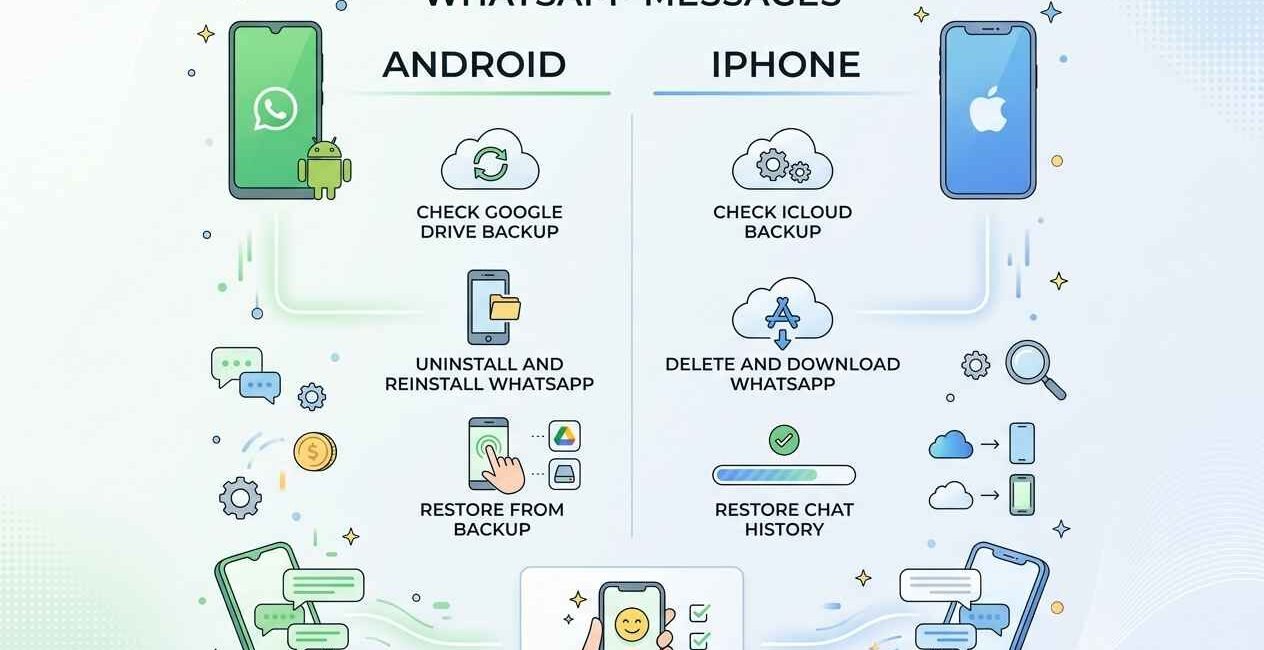
Deleted a WhatsApp chat by accident, or had one disappear after switching phones? Whether you can get it back depends entirely on one thing: whether you had backups turned on before the messages were deleted. This guide covers every recovery method for both Android and iPhone, in order of how likely each one is to actually work.
Can You Really Recover Deleted WhatsApp Messages?
WhatsApp does not store your message history on its own servers once messages are delivered — end-to-end encryption means only your device (and your backups) hold a copy. This means recovery is only possible if you have a local or cloud backup from before the messages were deleted. If backups were off, the messages are genuinely unrecoverable, no matter what a third-party app promises.
Method 1: Restore from Local Backup (Android)
Android saves a local backup to your phone’s storage automatically, separate from any cloud backup.
- Uninstall WhatsApp completely
- Reinstall it from the Play Store
- Verify your phone number during setup
- When prompted, tap Restore to recover from the local backup found in your phone’s storage
This only works if the backup was created before the messages were deleted — a backup made after deletion won’t include them.
Method 2: Restore from Google Drive Backup (Android)
- Go to WhatsApp Settings > Chats > Chat Backup to check your last backup date and time
- If it’s before the deletion, uninstall and reinstall WhatsApp
- During setup, verify your number and tap Restore when prompted to restore from Google Drive
- Wait for the restore to complete before opening any chats
You can check your Google Drive backup settings directly in the Google Drive support documentation if you’re unsure whether backup was enabled.
Method 3: Restore from iCloud Backup (iPhone)
- Go to WhatsApp Settings > Chats > Chat Backup to confirm your last iCloud backup date
- Delete WhatsApp from your iPhone
- Reinstall it from the App Store
- Verify your phone number, then tap Restore Chat History when prompted
Make sure you’re signed in to the same Apple ID and iCloud account that held the original backup — see Apple’s official iCloud backup guide for details on checking this.
Method 4: Ask the Sender to Resend
If there’s no backup available, the simplest working solution is often the most overlooked one: ask whoever sent the message to forward it to you again. This works for individual messages and media but obviously depends on the other person still having it.
Method 5: Check Notification History (Android Quick Trick)
If you deleted a message very recently and haven’t restarted your phone, some Android versions keep a notification log that still shows the message text.
- Long-press an empty area of your home screen
- Tap Notifications > Notification History (naming varies slightly by phone brand)
- Look for the WhatsApp notification containing the deleted message
This only shows a preview of the text, not media, and only works for messages received recently.
What If You Never Made a Backup?
If chat backup was off and the sender can’t resend the message, the content is genuinely gone. Be cautious of third-party “WhatsApp recovery” apps that claim otherwise — because of end-to-end encryption, no app can recover messages that were never backed up, and many of these tools exist purely to collect personal data.
How to Avoid Losing Messages in the Future
- Go to WhatsApp Settings > Chats > Chat Backup and turn on automatic daily backups
- On Android, make sure Google Drive backup is enabled with a Wi-Fi-only or “any network” setting depending on your data plan
- On iPhone, confirm iCloud has enough free storage space for backups to actually complete
- Star important messages (tap and hold > Star) so they’re easy to find even if you delete the surrounding chat
See WhatsApp’s own official chat backup FAQ for the most up-to-date backup settings for your device.

The Seecom is your trusted source for unbiased reviews, expert analysis, and comprehensive comparisons to help you choose with confidence.

Other Articles

How to Take a Screenshot on Any Phone (iPhone & Android)
How to Fix Snapchat Stuck on Sending (Snaps Not Sending)