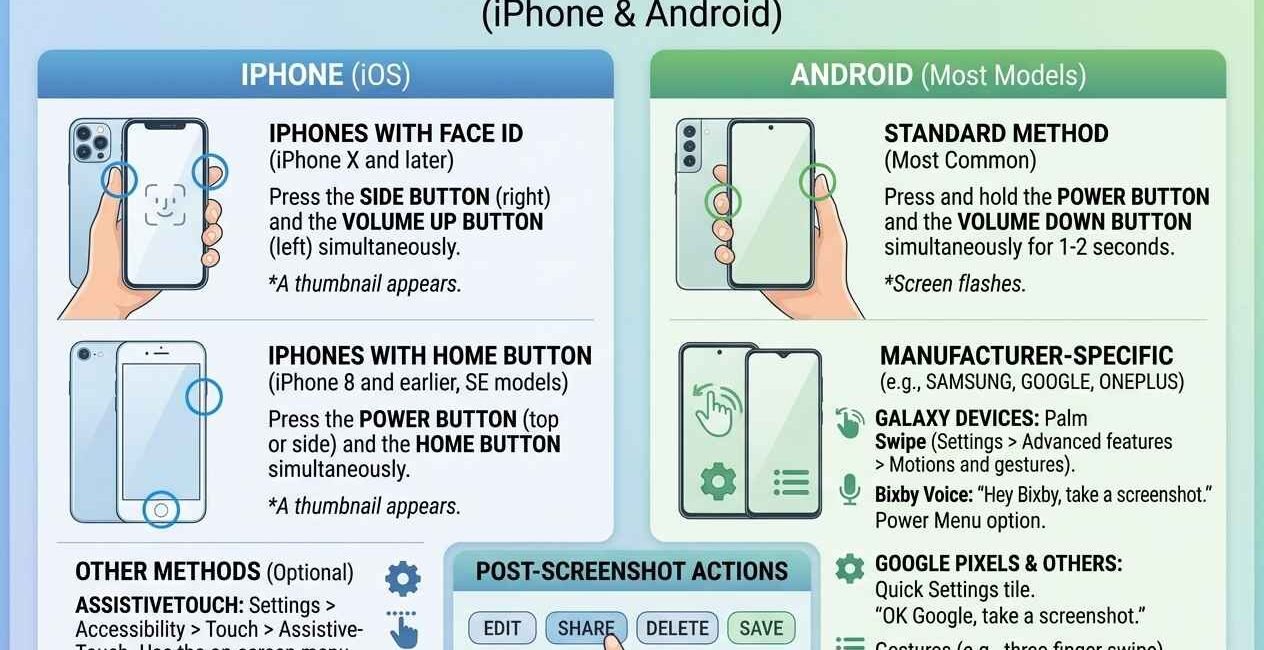
The exact screenshot method depends on your phone brand and model, since Android manufacturers customize this button combination differently and Apple changed its method when Face ID replaced the Home button. This guide covers every common device so you can find yours quickly.
iPhone with Face ID (iPhone X and Later, No Home Button)
See Apple’s official screenshot guide if your model isn’t listed here.
- Press the Side button and the Volume Up button at the same time
- Release both immediately — you’ll see a flash and hear a shutter sound (if sound is on)
- A thumbnail appears in the bottom-left corner — tap it to edit, or swipe it away to save it directly to Photos
iPhone with a Home Button (iPhone 8 and Earlier, SE)
- Press the Home button and the Side (or Top) button at the same time
- Release both immediately
- The screenshot saves to your Photos app automatically
Samsung Galaxy Phones
For the latest One UI screenshot options, see Samsung’s official support page.
- Press the Power button and the Volume Down button at the same time
- Hold for about one second, then release
- Alternatively, swipe the edge of your hand across the screen if Palm Swipe Gesture is enabled (Settings > Advanced Features > Motions and Gestures)
Google Pixel Phones
Google also documents this in its official Pixel Phone Help Center.
- Press the Power button and Volume Down button together
- Hold briefly, then release
- A preview appears at the bottom of the screen with quick-edit and share options
Other Android Phones (Xiaomi, OnePlus, Oppo, Vivo, and Most Others)
- Press the Power button and Volume Down button at the same time (this combination works on almost all Android phones regardless of brand)
- If that doesn’t work, check Settings > Additional Settings (or Gestures) for a “three-finger swipe down” screenshot gesture, which many Chinese Android brands enable by default
Using Assistive Touch or a Software Button (iPhone)
If your Side or Volume buttons are damaged, iPhone lets you screenshot without physical buttons:
- Go to Settings > Accessibility > Touch > AssistiveTouch, and turn it on
- Tap the floating on-screen button > Device > More > Screenshot
How to Take a Scrolling Screenshot
Some phones can capture an entire scrollable page (like a long webpage or chat) in one image instead of several separate screenshots.
- Samsung: After taking a screenshot, tap “Capture more” in the toolbar that appears at the bottom
- Most other Android phones: Take a screenshot, then look for a “Scroll capture” or “Extend” button in the preview toolbar
- iPhone: Screenshot a webpage in Safari, tap the thumbnail, and select the “Full Page” tab at the top before saving as a PDF
Where Do Screenshots Get Saved?
- iPhone: Photos app > Albums > Screenshots
- Android: Gallery or Photos app, usually in a folder named “Screenshots”
Button Combination Not Working?
- Make sure you’re pressing both buttons at the exact same time, not one after the other
- Restart your phone — a frozen system process can occasionally block the screenshot function
- Check if screenshots are disabled by an app (some banking or streaming apps block screenshots on their own screens for security)

The Seecom is your trusted source for unbiased reviews, expert analysis, and comprehensive comparisons to help you choose with confidence.

Other Articles

Gross Pay vs Net Pay: What Is the Difference?
How to Recover Deleted WhatsApp Messages (Android & iPhone)