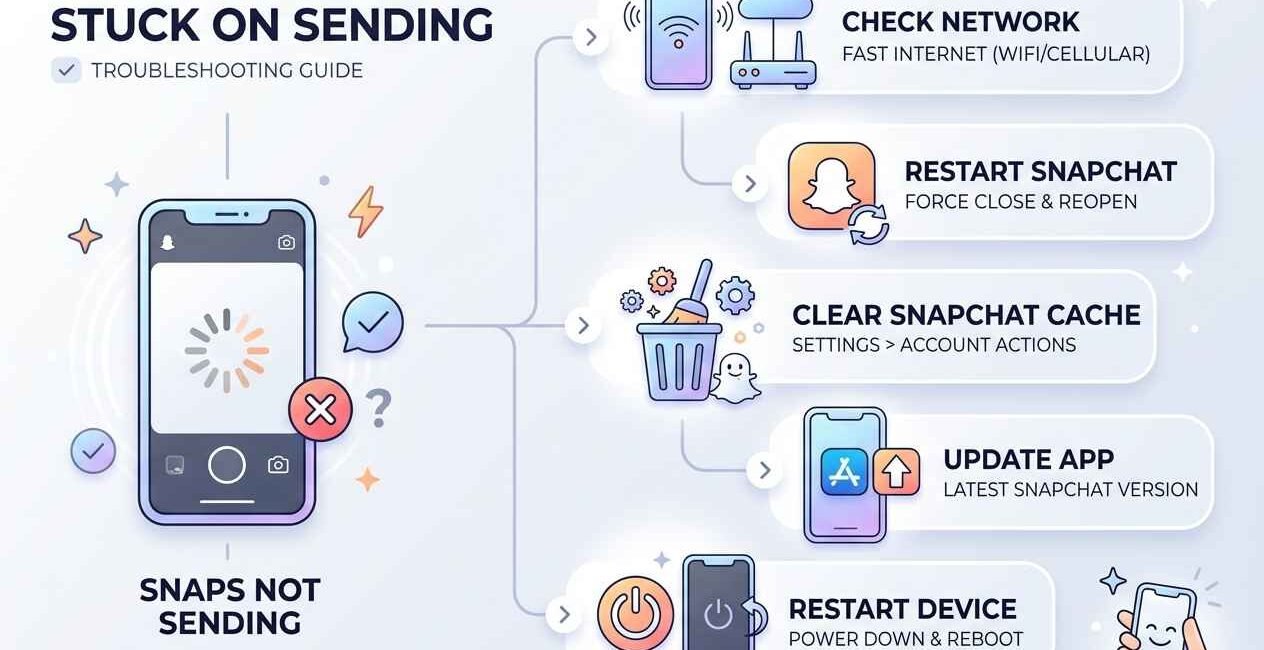
When a Snap gets stuck on “Sending” with a spinning icon that never clears, it’s almost always caused by one of five things: a weak connection, a corrupted app cache, an outdated Snapchat version, low storage, or a temporary server issue on Snapchat’s end. This guide checks each cause in order so you can fix it without restarting your phone five times for nothing.
Why Do Snaps Get Stuck on Sending?
Snapchat has to upload your photo or video, confirm delivery with the recipient’s device, and then update the status in real time. If any part of that chain is interrupted — a dropped connection mid-upload, a full cache slowing the app down, or an outdated version with a known bug — the Snap sits in “Sending” instead of showing as delivered.
Quick Fixes to Try First
- Force close Snapchat and reopen it
- Restart your phone
- Switch between Wi-Fi and mobile data
- Check if Snapchat is down for everyone
- Update Snapchat to the latest version
If the Snap is still stuck after these checks, work through the fixes below.
Fix 1: Check Your Internet Connection
- Open a browser and load any website to confirm your connection actually works
- Turn Wi-Fi off, wait 30 seconds, then turn it back on
- If Wi-Fi is unstable, switch to mobile data and try resending
Fix 2: Clear Snapchat’s Cache
Snapchat automatically builds up cached data over time, and a bloated cache is one of the most common reasons Snaps stop sending properly.
In the app:
- Tap your profile icon > Settings (gear icon)
- Scroll to Account Actions > Clear Cache
- Confirm, then reopen Snapchat and try sending the Snap again
Fix 3: Update Snapchat
Snapchat pushes frequent updates that patch sending and delivery bugs. Running an outdated version is one of the most overlooked causes of stuck Snaps.
- Open the Play Store (Android) or App Store (iOS)
- Search for Snapchat and tap Update if one is available
- Reopen the app and try resending
Fix 4: Check Snapchat’s Server Status
Sometimes the problem isn’t your device at all. Snapchat occasionally has partial outages that specifically affect sending or delivery without taking the whole app down. Check Snapchat’s official support account or a service-status tracker before spending more time troubleshooting on your end.
Fix 5: Free Up Storage Space
Snapchat needs local storage to temporarily process photos and videos before uploading them. A nearly-full phone can cause the send to silently stall.
- Check available storage in your phone’s Settings
- Free up at least 1–2 GB by deleting unused apps or old downloads
- Restart your phone and try again
Fix 6: Log Out and Log Back In
This resets your session token with Snapchat’s servers, which can clear up delivery issues tied to your specific account rather than the app itself.
- Go to Settings > Logout
- Wait a minute, then log back in with your username and password
- Try sending the Snap again
Fix 7: Reinstall Snapchat
If nothing above works, uninstall and reinstall the app. Your account, friends, and Snap Score are stored on Snapchat’s servers, not your device, so you won’t lose anything by doing this.
Still Not Working?
If Snaps only get stuck when sending to one specific friend, the issue is usually on their end (their app, their connection, or their account) rather than yours — try sending to someone else to confirm. If every Snap you send gets stuck regardless of recipient, the fixes above should resolve it in almost all cases.

The Seecom is your trusted source for unbiased reviews, expert analysis, and comprehensive comparisons to help you choose with confidence.

Other Articles

How to Recover Deleted WhatsApp Messages (Android & iPhone)
How to Fix Mobile Game Lag on Android and iPhone