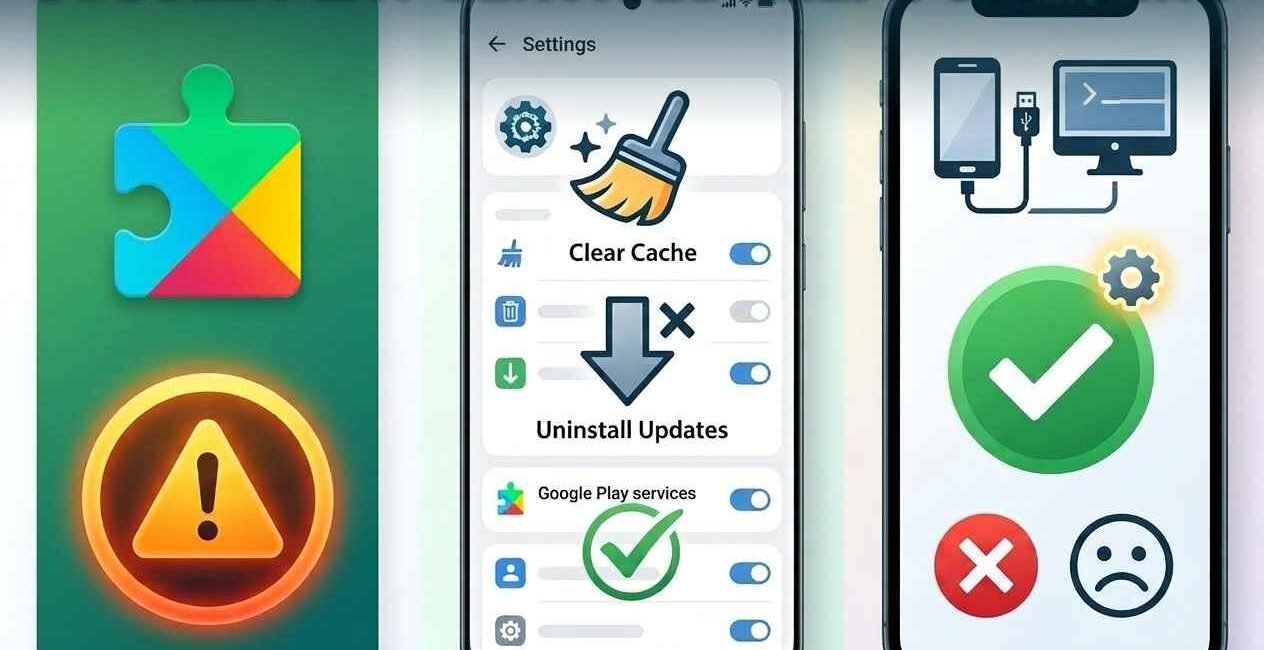
The “Unfortunately, Google Play Services has stopped” error is one of the most common and disruptive problems on Android, because Google Play Services isn’t just another app — it’s the background system that lets almost every app on your phone talk to Google’s servers, handle push notifications, manage location, and process in-app purchases. When it keeps crashing, it can bring down Gmail, Maps, the Play Store, and even third-party apps that rely on Google’s login and location APIs. This guide walks through every proven fix, from the fastest to the most advanced, so you can get your phone working normally again.
Most cases of “Google Play Services keeps stopping” are fixed by clearing the app’s cache and data, updating both Google Play Services and the Play Store, removing and re-adding your Google account, and freeing up storage space. If the error persists after those steps, uninstalling recent Google Play Services updates or wiping the app’s storage entirely resolves the vast majority of remaining cases.
What Is Google Play Services, and Why Does It Keep Crashing?
Google Play Services is a background system app that runs on nearly every Android device (except some China-market phones without Google apps). It handles core functions including:
- Signing in to apps with your Google account
- Push notifications for Gmail, WhatsApp, and thousands of other apps
- Location services used by Maps, Uber, and delivery apps
- In-app purchases and Google Play billing
- Automatic app updates through the Play Store
- Security scanning via Google Play Protect
Because so many apps depend on it constantly, even a small glitch in Google Play Services can trigger repeated crash pop-ups. The most common causes are:
- Corrupted cache or app data that builds up over time and conflicts with new updates
- An outdated version of Google Play Services or the Play Store itself
- A buggy update that was pushed to some devices before being fully tested
- Low storage space, which prevents the service from writing temporary files it needs
- A corrupted or conflicting Google account on the device
- Third-party antivirus or battery-saver apps interfering with Google’s background processes
- A general software conflict following a recent Android OS update
Universal Quick Fixes (Try These First)
These steps resolve the majority of cases and take only a few minutes:
- Restart your phone. A full reboot clears temporary memory issues and stops any stuck background process, and it fixes a surprising number of Google Play Services crashes on its own.
- Check your internet connection. Since Play Services constantly communicates with Google’s servers, a weak or unstable Wi-Fi or mobile data connection can trigger repeated errors. Try switching between Wi-Fi and mobile data to test.
- Check your device’s date and time. An incorrect clock can break the secure connection Play Services needs to authenticate with Google, causing repeated crashes. Go to Settings > System > Date & time and make sure “Set automatically” is switched on.
- Check your storage space. Go to Settings > Storage and confirm you have at least 1 GB free — Play Services can behave unpredictably when storage runs critically low.
If the error keeps appearing after these checks, move on to the step-by-step fixes below.
Step-by-Step Fix: Google Play Services Keeps Stopping
Step 1: Clear Google Play Services’ Cache
Clearing cache never deletes your Google account or app data — it only removes temporary files that may have become corrupted.
- Open Settings > Apps (or Apps & notifications)
- Tap See all apps, then find and tap Google Play Services (you may need to enable “Show system apps” first)
- Tap Storage & cache
- Tap Clear cache
- Restart your phone and check if the error is gone
Step 2: Clear Google Play Services’ Data (If Cache Alone Doesn’t Work)
This step is more aggressive but still doesn’t delete your files, photos, or app data on the device.
- Go to Settings > Apps > Google Play Services > Storage & cache
- Tap Clear storage (or Clear data)
- Confirm when prompted
- Restart your phone — some apps may briefly ask you to sign in again
Step 3: Update Google Play Services and the Play Store
An outdated version is one of the most common triggers for this error.
- Open the Google Play Store
- Tap your profile icon in the top-right corner
- Go to Settings > About, and check the Play Store version — if an update is pending, it will typically prompt you to update
- Search “Google Play Services” in the Play Store and install any available update for it directly
- Restart your phone afterward
Step 4: Remove and Re-Add Your Google Account
A conflicting or corrupted account sync is a frequent hidden cause of repeated crashes.
- Go to Settings > Accounts (or Passwords & accounts)
- Select your Google account and tap Remove account
- Restart your phone
- Go back to Settings > Accounts > Add account > Google, and sign back in
Step 5: Uninstall Google Play Services Updates
Since Google Play Services is a system app, you can’t uninstall it completely, but you can roll it back to the factory version that shipped with your phone, which often clears out a buggy recent update.
- Go to Settings > Apps > Google Play Services
- Tap the three-dot menu in the top-right corner
- Select Uninstall updates
- Confirm, then restart your phone — Google Play Services will automatically re-update itself over time as your device reconnects
Step 6: Check for a Pending Android System Update
- Go to Settings > System > System update
- Install any available update
- Restart your device afterward, since OS updates frequently include compatibility fixes for Google’s own system apps
Step 7: Run a Google Play Protect Scan
Occasionally, a conflicting or malicious app can interfere with Google Play Services’ normal operation.
- Open the Google Play Store
- Tap your profile icon > Play Protect
- Tap Scan
- Remove or update any app flagged as harmful
Step 8: Check for Conflicting Third-Party Apps
Some battery-saver, antivirus, or “app killer” utilities aggressively force-close background processes, including Google Play Services, mistaking it for a battery drain.
- Review any recently installed battery optimization, cleaner, or antivirus apps
- Temporarily uninstall or disable them
- Restart your phone and monitor whether the crashes stop
Step 9: Factory Reset (Last Resort)
If none of the above resolves the issue, a factory reset clears every possible software conflict, but it erases all data on the device, so back up everything first.
- Back up your photos, files, and app data (most syncs automatically to your Google account, but confirm important files separately)
- Go to Settings > System > Reset options > Erase all data (factory reset)
- Follow the on-screen prompts
- Set up your phone again and sign back into your Google account
Why This Error Often Appears Right After an Android or App Update
Google Play Services updates silently and automatically in the background on most devices, separately from full Android OS updates. Because it rolls out in phases across millions of devices, occasionally a specific device model or Android version combination hits a bug that wasn’t caught in testing. If your crashes started suddenly and other users with the same phone model are reporting the same thing around the same date, the most likely explanation is a temporary bug in a recent Play Services rollout — in which case, checking for a follow-up update within a day or two (Step 3 above) is usually the fastest resolution, since Google typically pushes a hotfix quickly once an issue is confirmed.
Google Play Services Keeps Stopping on Samsung, Xiaomi, and Other Android Skins
Manufacturer-customized versions of Android (Samsung’s One UI, Xiaomi’s MIUI/HyperOS, OnePlus’s OxygenOS) sometimes add their own aggressive battery management on top of stock Android, which can be more likely to interfere with background system apps like Google Play Services.
- On Samsung: Go to Settings > Apps > Google Play Services > Battery, and make sure it isn’t restricted; set it to Unrestricted
- On Xiaomi/MIUI or HyperOS: Go to Settings > Apps > Manage apps > Google Play Services > Battery saver, and set it to No restrictions; also check Autostart permissions are enabled
- On OnePlus/OxygenOS: Go to Settings > Battery > Battery optimization, find Google Play Services, and set it to Don’t optimize
When the Problem Isn’t Your Phone
If you’ve worked through every fix above and the error keeps appearing, it’s worth checking whether the issue is affecting many users at once rather than just your device. Community forums like the Google Play Help Community and Android developer forums often confirm known, widespread bugs shortly after they emerge, along with Google’s official timeline for a fix. In genuinely widespread cases, there’s little to do beyond waiting for Google’s next rollout.
How to Prevent This Error From Coming Back
- Keep both Google Play Services and the Play Store updated automatically
- Avoid installing aggressive “RAM cleaner” or “app killer” utilities, which frequently do more harm than good on modern Android
- Maintain at least 10–15% free storage on your device
- Keep your device’s date, time, and time zone set to automatic
- Update your phone’s full Android OS promptly when updates are available
- Avoid using unofficial or modified system app versions from outside the Play Store
Google Play Services Draining Your Battery Alongside the Crashes
If you’re seeing both repeated crash pop-ups and a noticeable spike in battery usage attributed to Google Play Services in your battery settings, the two issues are usually connected. A Play Services process stuck in a crash-restart loop consumes far more battery than it would running normally. To check:
- Go to Settings > Battery > Battery usage (naming varies by manufacturer)
- Look for Google Play Services in the list and check its percentage of total battery use
- If it’s unusually high, work through Steps 1–5 above first, since fixing the crash loop itself typically resolves the battery drain at the same time, without needing a separate fix
Google Play Services Errors When Using Dual SIM or Work Profiles
If your device has a separate Work Profile (common on company-managed phones) or a secondary user profile, Google Play Services actually runs as two independent instances — one per profile. A crash in one profile doesn’t necessarily affect the other, so if the error only appears in one profile:
- Confirm which profile is affected by checking Settings > Apps while switched into that specific profile
- Apply the cache-clearing and update steps above from within that profile specifically, not just your main one
- If the issue is limited to a managed Work Profile, contact your organization’s IT administrator, since some settings there may be locked and unavailable to change yourself
Frequently Asked Questions
What causes “Unfortunately, Google Play Services has stopped”?
The most common causes are a corrupted cache, an outdated Play Services or Play Store version, low storage space, a conflicting Google account, or a buggy update that hasn’t been fully rolled back yet.
Will clearing Google Play Services data delete my apps or photos?
No. Clearing cache or data for Google Play Services only resets that specific system app’s temporary files and local settings. Your photos, apps, and files elsewhere on the device are unaffected, though you may need to sign back into some apps afterward.
Can I uninstall Google Play Services completely?
No, it’s a core system component on most Android devices and can’t be fully uninstalled. You can, however, roll it back to the factory version using “Uninstall updates,” which often resolves crashes caused by a recent buggy update.
Why does this error keep happening after I already fixed it once?
Recurring crashes usually point to either a persistent storage or account conflict that a simple cache clear didn’t fully resolve, or a wider bug in a specific Play Services version that Google hasn’t patched yet on your device.
Does a factory reset always fix Google Play Services errors?
In almost all cases, yes, since it removes every possible software conflict. It should be treated as a last resort, though, since it erases all data on the device unless properly backed up first.
Is this error more common on certain phone brands?
Phones with heavily customized Android skins and aggressive battery management (some Samsung, Xiaomi, and OnePlus models) report this error more often, usually because background restrictions prevent Google Play Services from running normally.
“Google Play Services keeps stopping” is disruptive, but it’s rarely a sign of permanent damage to your phone. Work through the fixes in order — starting with a restart, clearing cache and data, updating both Play Services and the Play Store, and checking your Google account — before considering the more drastic step of a factory reset. In the majority of cases, the problem clears up within the first few steps.

The Seecom is your trusted source for unbiased reviews, expert analysis, and comprehensive comparisons to help you choose with confidence.

Other Articles

How to Fix Android Camera App Crashing Continuously (Complete 2026 Guide)
How to Fix Roblox Crashing on iOS and Android (Complete 2026 Guide)