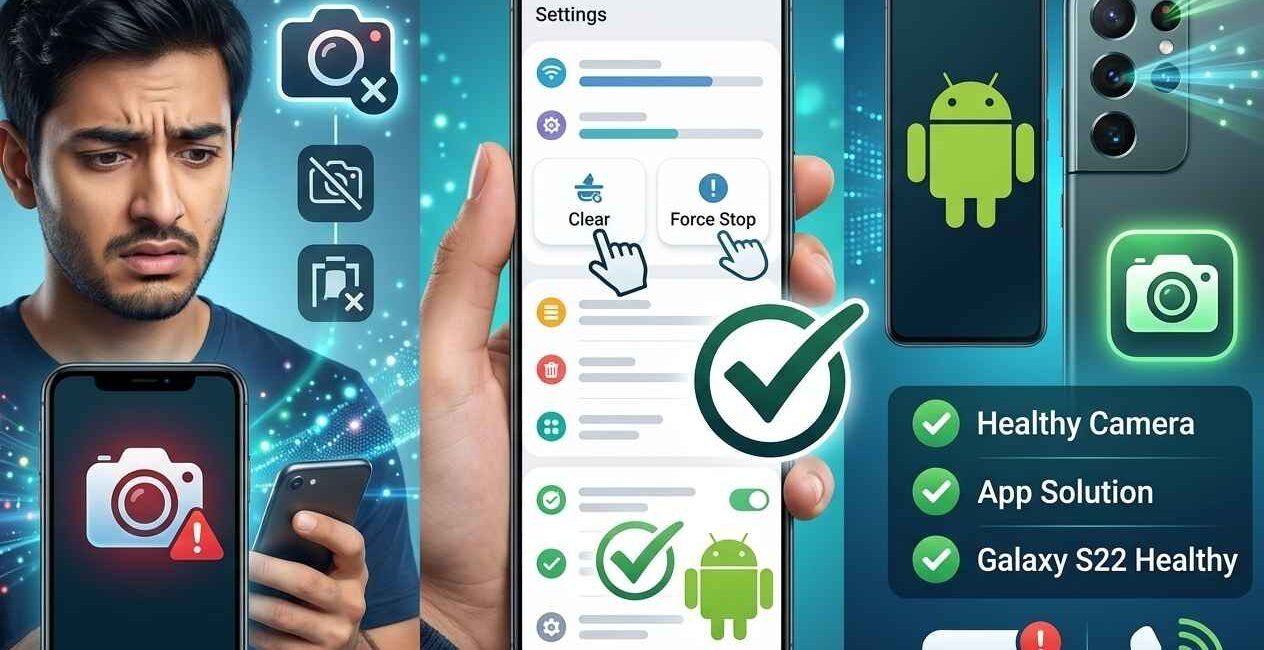
Few Android problems are as frustrating as your camera app crashing the exact moment you need it — a missed photo opportunity, a video call that won’t start, or a scanner app that refuses to open. The good news is that a crashing camera app is almost always a software issue rather than broken hardware, and it can usually be fixed in a few minutes using the steps in this guide, sourced and verified against official Android and manufacturer troubleshooting resources including Google’s own Play Store help documentation and community-reported fixes from the Samsung Members community.
Most cases of the Android camera app crashing continuously, including the common “Unfortunately, Camera has stopped” error, are fixed by force-stopping the app, clearing its cache and data, freeing up storage space, updating both the camera app and Android itself, and checking whether a third-party app is holding the camera hardware in use. If none of that works, a factory reset resolves nearly all remaining software-related cases.
Why Does the Android Camera App Keep Crashing?
Before diving into fixes, it helps to understand what’s actually going wrong. The most common causes reported across Android device forums and manufacturer support pages are:
- Corrupted cache or app data that has built up over time and conflicts with how the camera app tries to load
- Low storage space, which prevents the camera from writing temporary files and saving new photos or videos
- An outdated camera app or Android OS version that no longer matches what your device expects
- A conflicting third-party app — such as a scanner, video call app, or second camera app — holding the camera hardware in use in the background
- A corrupted photo, video, or gallery file that the camera app tries to load on launch and fails
- A recent buggy update, either to the camera app itself or to a system component it depends on
- Overheating, which can cause Android to forcibly shut down camera-related processes as a safety measure
- Rare hardware faults, which are the only cause on this list that software troubleshooting can’t fix
Universal Quick Fixes (Try These First)
These checks resolve the majority of camera crashes and take only a couple of minutes:
- Force stop the camera app. Simply closing it from the recent apps screen isn’t always enough, since parts of it can keep running in the background. Go to Settings > Apps > Camera > Force stop, then reopen it.
- Restart your phone. A full reboot clears temporary system files and resets any background process that may be holding the camera hardware locked.
- Wait and check for overheating. If your phone feels hot, let it cool down for a few minutes before trying the camera again — Android can intentionally block camera access when the device is running too hot.
- Check your storage space. Go to Settings > Storage and confirm you have at least 1 GB free, since the camera app needs room to process and save new photos and videos.
- Test with another camera app. If a third-party camera app (like Open Camera or Google Camera) opens and works fine, the problem is specific to your default camera app rather than your phone’s actual camera hardware — a useful diagnostic step before going further.
If the crash continues after these checks, move on to the step-by-step fixes below.
Step-by-Step Fix: Android Camera App Crashing Continuously
Step 1: Clear the Camera App’s Cache
Clearing cache never deletes your existing photos or videos — it only removes temporary files that may have become corrupted.
- Open Settings > Apps (or Apps & notifications)
- Tap See all apps, then find and tap Camera
- Tap Storage & cache
- Tap Clear cache
- Reopen the camera app and test it
Step 2: Clear the Camera App’s Data (If Cache Alone Doesn’t Work)
This resets the app’s settings back to default but still doesn’t touch photos or videos already saved to your gallery.
- Go to Settings > Apps > Camera > Storage & cache
- Tap Clear storage (or Clear data)
- Confirm when prompted
- Reopen the camera app — any custom settings (grid lines, saved shooting modes) will reset to default
Step 3: Check and Clear the Gallery/Photos App
Since the camera app often hands off to your gallery app immediately after taking a shot, a corrupted gallery cache can cause the camera to crash indirectly.
- Go to Settings > Apps > Gallery (or Photos)
- Tap Storage & cache > Clear cache
- Restart your phone and test the camera again
Step 4: Update the Camera App and Android
An outdated version is one of the most common triggers for repeated camera crashes.
- Open the Google Play Store and search for your phone’s camera app (or check your manufacturer’s app store, such as the Galaxy Store on Samsung devices) to install any pending update
- Go to Settings > System > System update, and install any available Android update
- Restart your phone afterward
Step 5: Close or Uninstall Conflicting Apps
Apps that also use the camera hardware in the background — video call apps, QR/barcode scanners, security camera apps, or a second camera app — can lock the hardware and cause your default camera app to crash when it tries to access it too.
- Check your recent apps screen and close anything that might still be using the camera
- If the issue started after installing a specific app, try uninstalling it temporarily to confirm it’s the cause
- Reopen the camera app and test
Step 6: Check App Permissions
Missing camera, storage, or microphone permissions can cause the app to crash instead of showing a clear error message.
- Go to Settings > Apps > Camera > Permissions
- Confirm Camera, Microphone, and Storage/Photos permissions are all granted
Step 7: Boot Into Safe Mode to Rule Out Third-Party Apps
Safe Mode temporarily disables all third-party apps, so if the camera works fine here, a third-party app is the underlying cause.
- Press and hold the Power button until the power menu appears
- Long-press Power off until you’re prompted to reboot into Safe Mode
- Confirm, and once restarted, test the camera app
- If it works normally in Safe Mode, uninstall recently added apps one at a time in normal mode until the crash stops
Step 8: Uninstall Recent Camera App Updates
If the crashes started right after an update to your default camera app (common on Samsung, Pixel, and other manufacturer camera apps), rolling it back can help while you wait for a fix.
- Go to Settings > Apps > Camera
- Tap the three-dot menu in the top-right corner
- Select Uninstall updates, if available
- Restart your phone and test again
Step 9: Factory Reset (Last Resort)
If nothing above resolves the issue, a factory reset clears every possible software conflict, but it erases all data on the device, so back up everything first, ideally through Google’s official backup and restore guidance.
- Back up your photos, videos, and files (most sync automatically via Google Photos, but confirm manually)
- Go to Settings > System > Reset options > Erase all data (factory reset)
- Follow the on-screen prompts
- Set up your phone again and test the camera before restoring apps one by one
Fixing “Unfortunately, Camera Has Stopped” on a Black Screen
If your camera app opens to a completely black screen rather than a visible crash message, the cause and fix are slightly different:
- Confirm no case, sticker, or screen protector is physically blocking the lens
- If your phone has a removable battery, a battery pull (removing and reinserting it) can reset a stuck camera sensor connection
- Try the flashlight — if that also fails to turn on, the issue is more likely hardware-related and worth a visit to a service center such as Samsung’s official repair service or your phone manufacturer’s equivalent
- If the flashlight works but the camera preview stays black, work through Steps 1–4 above, since this points to a software rather than hardware fault
Why This Happens More Often on Samsung, Xiaomi, and Other Skinned Android Phones
Manufacturer camera apps (Samsung’s Camera app, Xiaomi’s MIUI/HyperOS Camera, and similar) are more complex than Android’s stock camera, with extra AI scene detection, filters, and multi-lens switching — which means there’s more that can go wrong. If you’re on one of these devices:
- Samsung users can check the Samsung Members community forum for device-specific reports, since crashes are often traced to a specific One UI camera version affecting certain Galaxy models
- Xiaomi/MIUI and HyperOS users should check Xiaomi’s official support site for known camera app issues tied to specific firmware versions
- On any skinned Android phone, installing a lightweight third-party alternative like Open Camera is a reliable temporary workaround while you wait for an official fix
Camera Crashing Only When Recording Video (Not Taking Photos)
If photos work fine but video recording specifically crashes the app, the most likely causes are:
- Insufficient storage for video files, which are much larger than photos — free up at least 2–3 GB before testing again
- A resolution or frame rate setting too demanding for your device — lower the video quality in the camera app’s settings and test again
- Overheating during extended recording, especially in 4K — let the device cool and try a shorter clip first
How to Prevent Camera App Crashes From Coming Back
- Keep both your camera app and Android OS updated to their latest stable versions
- Maintain at least 10–15% free storage on your device at all times
- Avoid running multiple camera-dependent apps simultaneously in the background
- Periodically clear the camera and gallery app caches even before a crash occurs
- Avoid extended 4K video recording sessions on devices prone to overheating
- Install app updates promptly rather than delaying them for weeks
Frequently Asked Questions
Why does my Android camera app keep crashing?
The most common causes are a corrupted cache, low storage space, an outdated camera app or OS version, or another app holding the camera hardware in use in the background. Clearing the cache and checking for updates fixes most cases.
Will clearing the camera app’s cache delete my photos?
No. Clearing cache only removes temporary files and never touches photos or videos already saved to your gallery. Clearing “storage” or “data” resets the app’s settings but still doesn’t delete your saved media.
What does “Unfortunately, Camera has stopped” mean?
It’s a generic Android system message indicating the camera app’s process crashed unexpectedly, usually due to a software conflict rather than physical camera damage.
Why does my camera work in Safe Mode but not normally?
This confirms a third-party app is causing the conflict. Uninstall recently installed apps one at a time in normal mode until the crashes stop.
Is a black camera screen a hardware problem?
Not always. If the flashlight also fails to turn on, it’s more likely hardware-related. If only the camera preview is black but the flashlight works, it’s usually a software issue fixable with the steps above.
Does a factory reset always fix camera app crashes?
In almost all software-related cases, yes, since it clears every possible app conflict. It should be treated as a last resort, since it erases all data on the device unless properly backed up first.
Why does my camera only crash when recording video, not taking photos?
This usually points to insufficient storage, a video resolution setting too demanding for your device, or overheating during extended recording — lowering video quality is the most effective quick fix.
A crashing camera app is one of the most common — and most fixable — Android problems. Work through the steps in order: force stop and restart first, then clear cache and data, update both the app and Android, and rule out conflicting third-party apps using Safe Mode. In the large majority of cases, the problem clears up well before you need to consider a factory reset.

The Seecom is your trusted source for unbiased reviews, expert analysis, and comprehensive comparisons to help you choose with confidence.

Other Articles