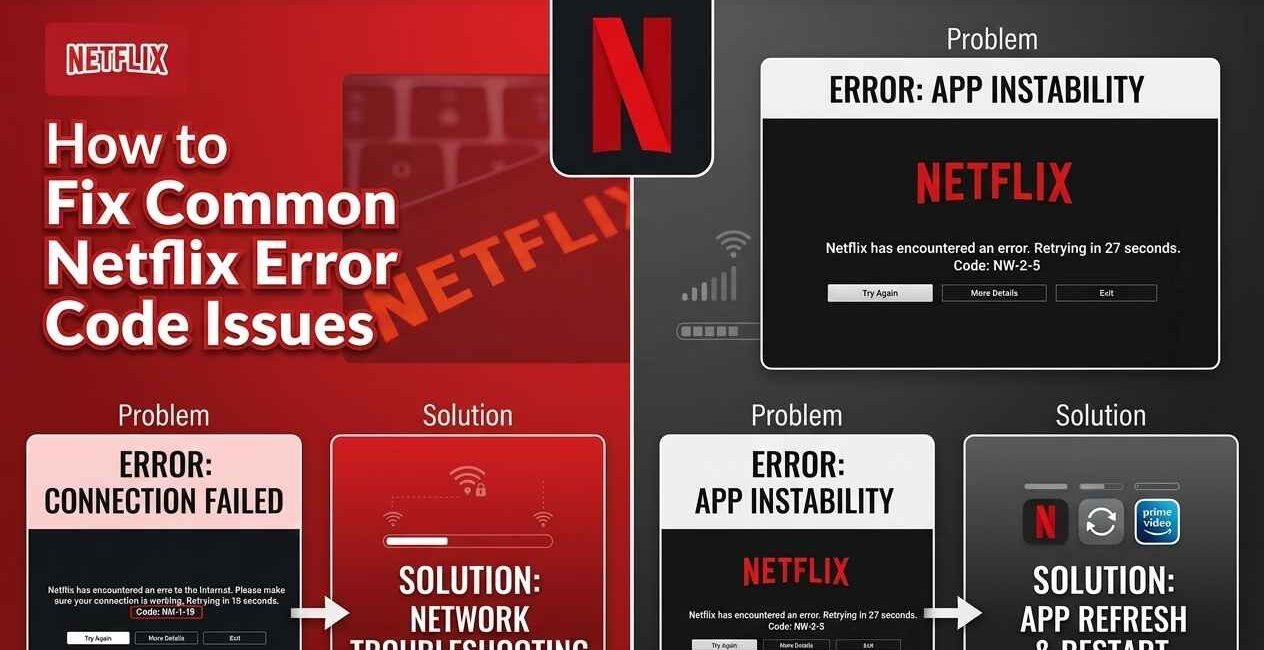
When Netflix won’t play, freezes on loading, or shows an error code instead of your show, the cause is almost always one of five things: a server-side outage, a weak connection, a corrupted app or browser cache, an outdated app, or a router that needs a restart. This guide checks each one in order, and explains what the most common Netflix error codes actually mean.
Quick Fixes to Try First
- Restart the Netflix app (or refresh the browser tab)
- Check if Netflix is down for everyone on Downdetector
- Restart your device
- Switch between Wi-Fi and mobile data (on phones/tablets)
- Try a different show or movie to see if the issue is content-specific
If Netflix still won’t play after these checks, work through the fixes below.
Fix 1: Check Your Internet Connection
- Open a browser and load any website to confirm your connection actually works
- Run a speed test — Netflix recommends at least 3 Mbps for standard definition and 15 Mbps for 4K streaming
- If Wi-Fi is weak, move closer to your router or switch to a wired connection where possible
Fix 2: Clear Netflix’s Cache
On a phone or tablet (Android):
- Go to Settings > Apps > Netflix > Storage
- Tap Clear Cache
- Reopen Netflix and try playing the title again
On a smart TV or streaming device: uninstall and reinstall the Netflix app — most TVs and streaming boxes don’t offer a separate cache-clear option.
In a web browser: clear your browser’s cache and cookies for netflix.com, then reload the page.
Fix 3: Update the Netflix App
Netflix regularly ships updates that fix playback bugs specific to certain devices. Running an outdated version is one of the most overlooked causes of playback errors.
- Open your device’s app store
- Search for Netflix and update if available
- Restart the app and try again
Common Netflix Error Codes Explained
- NW-2-5 / NW-2-4: A connection problem between your device and Netflix — usually fixed by restarting your router
- UI-800-3: Often tied to outdated app data — clearing cache or reinstalling the app usually resolves it
- NSES-500 / NSES-503: A temporary Netflix server-side issue — check Netflix’s status and wait a few minutes
- M7111-1331 / M7111-5059: A network or proxy/VPN conflict — disable any active VPN and try again
- NW-3-6: A DNS or network configuration issue — restarting your router or resetting network settings usually fixes it
For a complete, regularly updated list, see Netflix’s official error code directory.
Fix 4: Restart Your Router
Many connection-related error codes are fixed simply by power-cycling your router:
- Unplug your router and modem for 30 seconds
- Plug them back in and wait for all lights to stabilize (usually 1–2 minutes)
- Reload Netflix and try playing the title again
Fix 5: Try a Different Device
If Netflix works fine on your phone but not your TV (or vice versa), the problem is specific to that device’s app or hardware rather than your account or connection — focus troubleshooting there instead.
Still Not Working?
If a single show or movie won’t play while others work fine, the issue is usually with that specific title’s file on Netflix’s end — try again after a few hours. If nothing plays at all across every device, check Netflix’s official Help Center for account-specific issues like a payment problem or regional restriction.

The Seecom is your trusted source for unbiased reviews, expert analysis, and comprehensive comparisons to help you choose with confidence.

Other Articles
How to Calculate Hourly Rate from Annual Salary