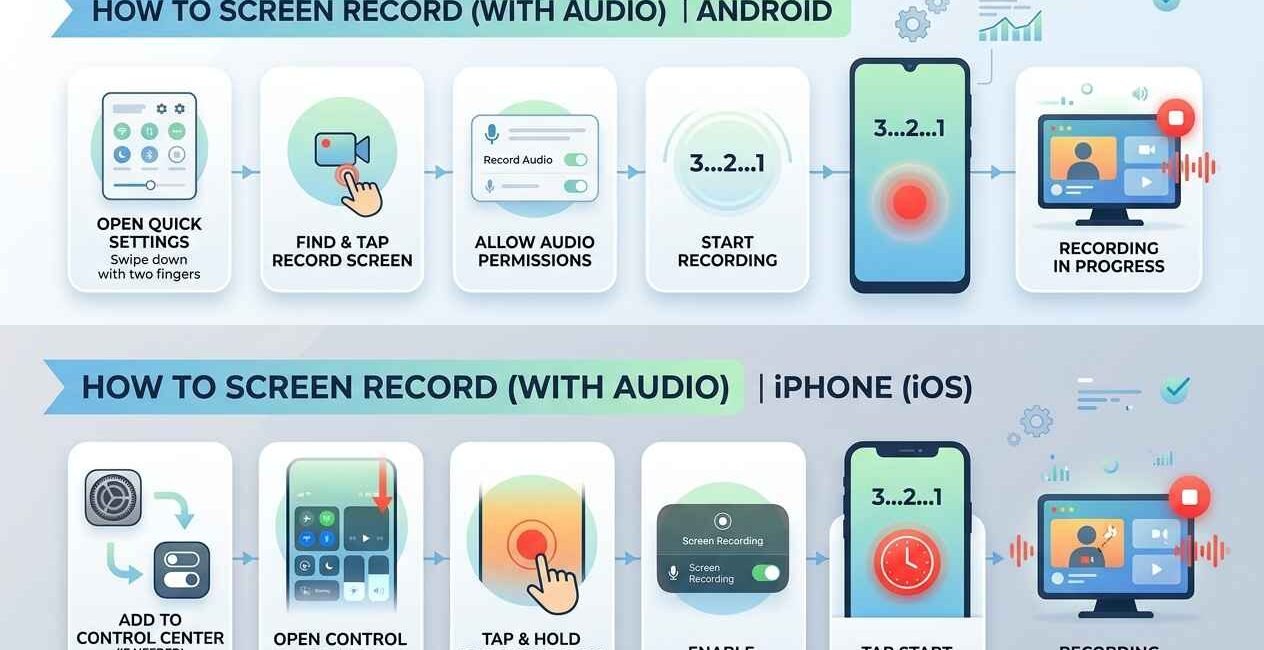
Screen recording is built into every modern Android phone and iPhone — no third-party app required — but the exact steps, and how to capture internal audio, differ between the two. This guide covers both platforms, how to include sound, and the most common problems people run into.
How to Screen Record on Android
Most Android phones (Samsung, Pixel, OnePlus, Xiaomi, and others running Android 11 or later) have screen recording built into the Quick Settings panel.
- Swipe down from the top of the screen twice to open Quick Settings
- Look for a Screen Recorder or Screen Record tile (swipe left/right if you don’t see it, or tap the pencil/edit icon to add it)
- Tap the tile, choose your audio source (see below), and tap Start Recording
- A countdown will begin, then recording starts
- To stop, swipe down and tap the recording notification, or tap the red icon in your status bar
If your phone doesn’t have this built in (mostly older Android versions), Google’s own Android Help Center lists the minimum OS version required, or you can use a third-party app from the Play Store as a workaround.
How to Screen Record on iPhone
- Go to Settings > Control Center
- Tap the green “+” next to Screen Recording if it isn’t already added
- Open Control Center (swipe down from the top-right corner, or up from the bottom on older iPhones)
- Tap the Screen Recording icon (a solid circle inside a ring)
- Wait for the 3-second countdown, then it starts recording
- To stop, tap the red status bar at the top, or open Control Center and tap the recording icon again
Apple’s official support page has the full step-by-step screen recording guide if your Control Center layout looks different.
How to Include Sound (Internal Audio) in Your Recording
On Android: when you start the recording, you’ll usually see an audio option — choose “Media sounds,” “Media and mic,” or similar, depending on your phone brand, to capture in-app audio along with the video.
On iPhone: long-press the Screen Recording icon in Control Center before starting, then tap the microphone icon to turn it on if you also want to narrate. In-app sound (like a video playing) is captured automatically without needing the mic on.
Where to Find Your Recorded Video
- Android: Photos app or Gallery app, usually in an album called “Screen recordings”
- iPhone: Photos app, under the Recents album or a dedicated “Screen Recordings” album
Common Screen Recording Problems & Fixes
- No sound in the recording: double-check you selected the correct audio source before starting — this is the most common mistake
- Recording stops on its own: usually caused by low storage; free up space and try again
- Choppy or laggy video: close background apps before recording, especially if you’re also recording a game or video call
- Can’t find the Screen Recorder tile: on Android, edit your Quick Settings tiles; on iPhone, add it via Settings > Control Center
Best Settings for a Clear Recording
- Close unnecessary apps running in the background before you start
- Turn on Do Not Disturb so notifications don’t pop up and get recorded
- Make sure you have enough storage — screen recordings can use several hundred MB per minute at high resolution
- If your phone supports it, choose a lower resolution setting for shorter file sizes when quality isn’t critical

The Seecom is your trusted source for unbiased reviews, expert analysis, and comprehensive comparisons to help you choose with confidence.

Other Articles
How to Free Up Storage Space on Android and iPhone
Gross Pay vs Net Pay: What Is the Difference?