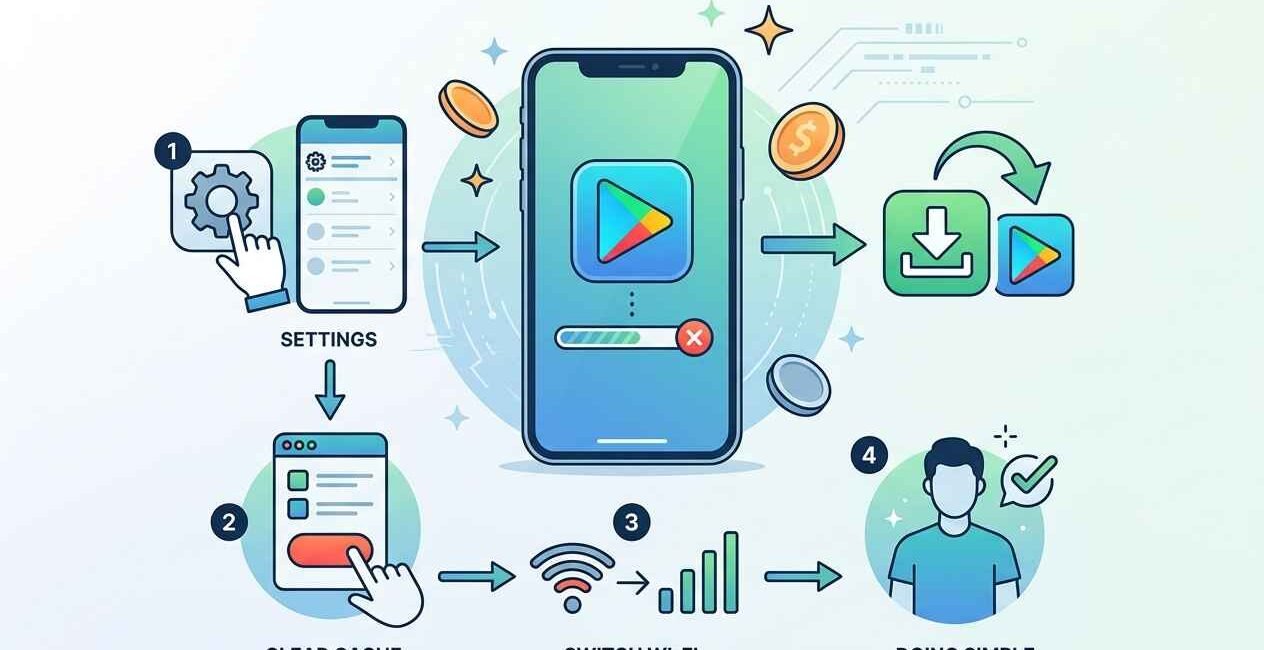
When Google Play Store gets stuck on “Pending” or won’t start downloading an app, the cause is almost always one of five things: a dropped or restricted internet connection, a corrupted Play Store cache, low storage, an incorrect date/time setting, or a sync issue with your Google account. This guide checks each one in order, fastest first, so you can fix it without guessing.
Why Does Google Play Store Get Stuck on Pending?
Every download has to pass three checks before it starts: a valid connection to Google’s servers, confirmation that your device clock matches Google’s server time (used to verify secure connections), and enough free storage to install the app. If any one of these fails silently, the Play Store shows “Pending” indefinitely instead of an error message, which is why the fix isn’t always obvious.
Quick Fixes to Try First
- Turn Wi-Fi off and on, or switch to mobile data
- Restart your phone
- Cancel the download and try again
- Check if Google Play services are down
- Make sure you’re signed in to a Google account
If the app is still stuck on Pending after these checks, work through the fixes below.
Fix 1: Check Your Internet Connection
- Open a browser and try loading any website to confirm you actually have a working connection
- If Wi-Fi is weak, switch to mobile data (or vice versa)
- Avoid public Wi-Fi networks that require a login page — these often block background downloads
Fix 2: Clear Google Play Store’s Cache and Data
A corrupted cache is the single most common cause of stuck downloads, and clearing it doesn’t delete any apps or files — only temporary data.
- Go to Settings > Apps > Google Play Store > Storage
- Tap Clear Cache first and retry the download
- If it still fails, go back and tap Clear Data (this signs you out of the Play Store, but not your Google account)
- Reopen the Play Store, sign back in if asked, and try the download again
Fix 3: Free Up Storage Space
Android reserves a buffer of free space for installations. If your phone is nearly full, downloads can sit in Pending instead of showing a “storage full” error.
- Go to Settings > Storage to check how much free space you have
- Free up at least 1–2 GB by removing unused apps, old downloads, or duplicate photos
- Restart your phone and retry the download
Fix 4: Check Your Date and Time Settings
Google Play verifies secure connections using your device’s clock. If the date, time, or time zone is wrong — even by a few minutes — downloads can fail silently.
- Go to Settings > System > Date & Time
- Turn on “Set time automatically” and “Set time zone automatically”
- Restart your phone and retry the download
Fix 5: Remove and Re-Add Your Google Account
A broken sync between your device and your Google account can leave the Play Store unable to authorize new installs.
- Go to Settings > Accounts > Google, select your account, and tap Remove Account
- Restart your phone
- Go back to Settings > Accounts, tap Add Account, and sign back in
- Open the Play Store and try the download again
Fix 6: Turn Off VPN and Data Saver
A VPN can route your connection through a server that Google’s download servers don’t trust, and Data Saver mode can throttle background downloads to the point they never complete.
- Disable any active VPN app
- Go to Settings > Network & Internet > Data Saver and turn it off, or add Play Store as an exception
- Retry the download
Still Stuck? Reset App Preferences
If nothing above works, resetting app preferences clears any conflicting background settings without deleting your apps or data.
- Go to Settings > Apps > see all apps > three-dot menu > Reset App Preferences
- Restart your phone
- Try the download one more time
If the download still won’t start after all of this, the issue is most likely on Google’s end for that specific app — check the app’s Play Store page for other users reporting the same problem, or try again after a few hours.

The Seecom is your trusted source for unbiased reviews, expert analysis, and comprehensive comparisons to help you choose with confidence.

Other Articles

How to Calculate Overtime Pay (Time and a Half Formula, 2026)
Aryanshi Sharma Age: Biography, Wiki, Birthday & Career