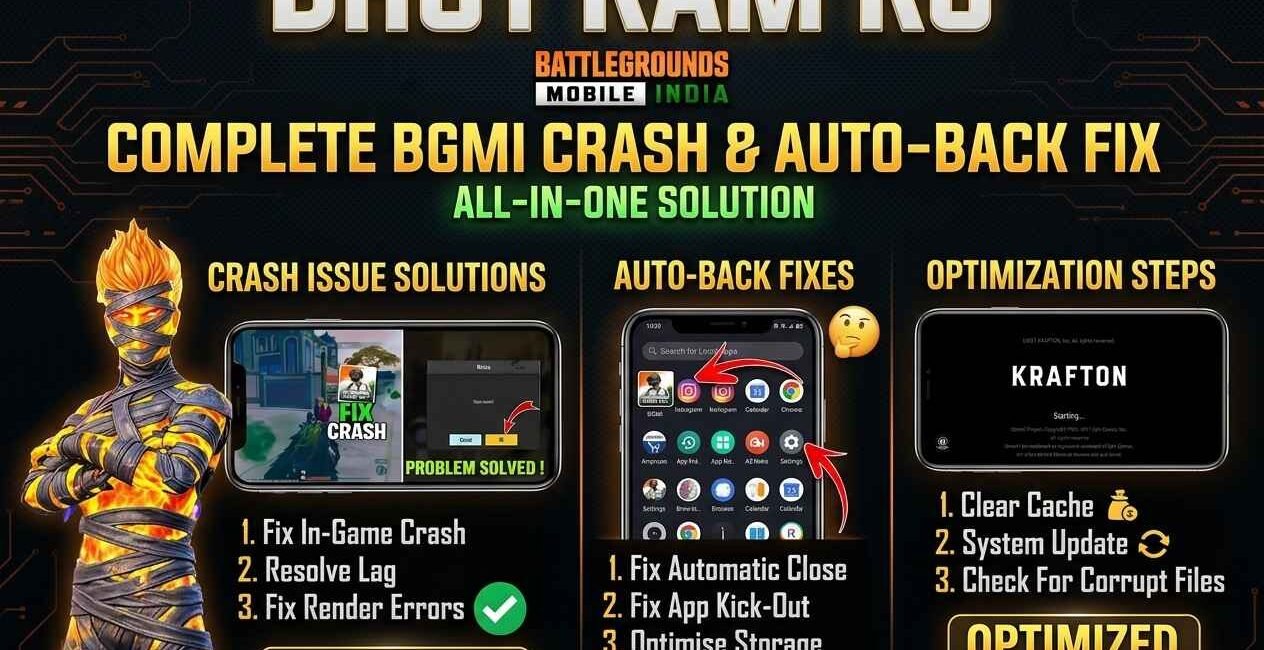
BGMI’s “auto back” issue — where the game suddenly exits to your home screen mid-match — and crashing right on launch, before you even reach the lobby, share most of the same root causes: low RAM forcing the OS to kill the app, a corrupted cache, an outdated app or OS version, insufficient storage, or a graphics setting too heavy for your device. This guide covers both problems for Android and iOS, with device-specific fixes for Samsung, Xiaomi, and iPhone users.
Why Does BGMI Auto Back or Crash on Launch?
A launch crash means BGMI failed to initialize its graphics engine, cache, or account session before you even reach the main menu — usually caused by an outdated build, a corrupted local file, or insufficient storage. An auto-back exit mid-match, by contrast, almost always means your device’s operating system force-killed the app to reclaim memory, which is far more common on devices with 4 GB of RAM or less running BGMI’s heavier graphics settings. Knowing which one you’re dealing with determines which fixes to try first.
Quick Fixes to Try First
- Force close BGMI and reopen it
- Restart your phone
- Update BGMI to the latest version
- Free up at least 3 GB of storage
- Close every other app running in the background
If crashing on launch or auto-back continues after these five checks, work through the fixes below.
Part 1: Fix BGMI Crash on Launch
Fix 1: Update BGMI to the Latest Version
Krafton regularly patches launch-crash bugs, and an outdated build is the most common cause. On Android, open the Google Play Store; on iOS, open the App Store, search BGMI, and update if available.
Fix 2: Update Your Phone’s Operating System
BGMI targets the newest Android and iOS graphics APIs. Running an old OS version frequently shows up as a crash the instant the app tries to launch. Go to Settings > System > System Update (Android) or Settings > General > Software Update (iPhone).
Fix 3: Clear the App’s Cache (Not Data)
A corrupted cache file is a leading cause of launch crashes, especially right after an update.
- Go to Settings > Apps > BGMI > Storage
- Tap Clear Cache (avoid Clear Data, which resets local settings not synced to your account)
- Reopen the app
On iPhone, since there’s no direct cache-clear option, offload the app via Settings > General > iPhone Storage > BGMI > Offload App, then reinstall to achieve the same effect.
Fix 4: Free Up Storage and Close Background Apps
BGMI needs several GB of free space to load its assets on launch, and it competes for RAM with anything else running. Delete unused apps and photos, close every background app before launching, and aim for at least 3 GB of free storage.
Fix 5: Switch the Graphics API (Android Only)
Some devices crash on launch specifically because of a conflict with the default graphics rendering API. If the game gets far enough to reach Settings, go to Settings > Graphics > Graphics API and switch between OpenGL and Vulkan, then restart. If the crash happens before reaching the menu, try this after a fresh reinstall instead.
Fix 6: Check App Permissions
Go to Settings > Apps > BGMI > Permissions (Android) or Settings > BGMI (iPhone) and make sure Storage/Photos access is allowed — a denied permission can prevent the app from writing temporary files it needs just to launch.
Fix 7: Reinstall BGMI Completely
If nothing above works, uninstall the app, restart your phone, and reinstall from the Play Store or App Store. This replaces every local file a cache clear doesn’t reach. Log back in with your linked account to restore your progress.
Part 2: Fix BGMI Auto Back Mid-Match
Fix 1: Free Up RAM by Closing Background Apps
This is the single most effective fix for auto-back issues. Close messaging, streaming, and social apps completely before starting a match, since every app left running competes with BGMI for the same limited memory your device’s OS uses to decide what to kill.
Fix 2: Lower In-Game Graphics Settings
Running graphics quality higher than your device can comfortably handle increases both memory pressure and overheating, both of which trigger auto-back exits during extended matches.
- In the lobby, go to Settings > Graphics
- Lower Graphics Quality to Smooth or Balanced instead of HD
- Reduce Frame Rate to Medium if your device is a few years old
Fix 3: Disable Battery Saver and Enable Game Booster
Battery saver modes throttle CPU/GPU performance and can be more aggressive about killing background apps, both of which increase auto-back frequency. Turn off battery saver while playing, and enable your phone’s built-in Game Booster or Game Mode if it has one.
Fix 4: Free Up Storage
A nearly full device is far more likely to have its apps killed by the OS to free up space during a match. Keep at least 3–4 GB free, more right after a major update.
Fix 5: Check for Overheating
Extended play at high graphics settings heats up the CPU and GPU, and many devices throttle performance or force-close demanding apps to protect the hardware. Take short breaks between matches, and avoid playing while charging if your device runs hot.
Fix 6: Update Your Phone’s OS and GPU Drivers
An outdated OS after a BGMI update is a common source of new auto-back issues that weren’t there before. Check for pending system updates.
Fix 7: Check BGMI’s Server Status
If auto-back issues are happening to many players at once, it may be a server-side issue rather than your device. Check Downdetector’s status page for a spike in reports before assuming the problem is local.
Fix 8: Reinstall If the Issue Continues
If auto-back exits continue after every fix above, uninstall, restart your phone, and reinstall fresh from the Play Store or the official BGMI website.
Fix Summary: Match Your Symptom to the Right Fix
| Symptom | Most Likely Cause | Fix to Try First |
|---|---|---|
| Crashes before reaching the lobby | Outdated app or corrupted cache | Part 1, Fix 1 & 3 |
| Auto backs randomly mid-match | Low RAM / background app kill | Part 2, Fix 1: Close background apps |
| Auto backs during heavy fights only | Graphics settings too high | Part 2, Fix 2: Lower graphics |
| Crash/auto-back right after an update | Corrupted cache or compatibility gap | Update app, then clear cache |
| Auto backs after long play sessions | Overheating | Part 2, Fix 5: Take breaks |
Brand-Specific Fixes for Common Android Phones
Samsung (One UI)
Go to Settings > Apps > BGMI > Battery and set it to Unrestricted, and exclude BGMI from Samsung’s “Put unused apps to sleep” list, since this is one of the most frequently reported causes of auto-back issues on Galaxy devices according to Samsung’s own community forum.
Xiaomi (MIUI/HyperOS)
Go to Settings > Apps > Manage apps > BGMI > Battery saver and choose No restrictions, then enable Autostart so MIUI’s aggressive memory management doesn’t kill the app mid-match.
Oppo/Vivo (ColorOS/FunTouch OS)
Open Settings > Battery > High background power consumption and allow BGMI to run unrestricted in the background.
iOS-Specific Notes
On iPhone, BGMI crashing on launch is frequently tied to Low Power Mode, which throttles background performance. Check Settings > Battery and turn it off before playing. Also confirm your date and time are set to Set Automatically under Settings > General > Date & Time, since an incorrect device clock can cause the app’s account authentication to fail and crash on launch. iPhones with lower base storage (64 GB models) are also more prone to launch crashes simply due to running out of free space faster after each major BGMI update.
Is It Just BGMI, or Are Other Apps Crashing Too?
It’s worth confirming the issue is specific to BGMI before working through every fix above:
- Only BGMI crashes or auto backs, other apps run fine — follow this guide from the top; it’s almost certainly cache, storage, or graphics-related.
- Several heavy apps or games get killed the same way — this points to a device-wide RAM issue rather than something specific to BGMI. Closing more background apps and considering a lower graphics preset becomes even more important.
- The whole device restarts or freezes, not just the app — this is a hardware or OS-level issue outside BGMI’s control; contact your device manufacturer’s support instead.
When to Contact Support
If crashing or auto-back exits persist after every fix above, report it directly rather than continuing to troubleshoot blindly:
- Report through in-game Settings > Customer Service
- Check the official BGMI website for known-issue announcements
How to Prevent Future Crashes and Auto-Back Issues
- Turn on automatic app updates so you’re always on the most stable, patched build
- Keep at least 3–4 GB of free storage at all times, more right after a major update
- Clear cache after every major update before your first match
- Avoid Ultra/HD graphics settings on devices older than 2–3 years
- Close background apps and disable battery saver before every match
Frequently Asked Questions
Why does BGMI crash only on launch, not during gameplay?
A launch crash usually means the app failed to initialize its graphics API, cache, or account session before reaching the lobby, whereas mid-match auto-back is almost always caused by the OS killing the app for memory, an entirely different problem. Match the fix to which one you’re seeing.
Will clearing BGMI’s cache delete my rank or UC balance?
No. Clearing cache only removes temporary files. Your rank, UC, and purchases are tied to your linked account on Krafton’s servers, not your local cache.
Does reinstalling BGMI delete my progress?
No, as long as your account is linked to Facebook, Google, or a Krafton account. Reinstalling only removes local files; logging back in restores your full progress.
Is 4 GB of RAM enough to avoid auto-back issues?
It’s the practical minimum for Smooth/Balanced graphics settings. Devices with 4 GB or less are far more likely to have BGMI force-closed by the OS when multitasking or playing on HD graphics; 6 GB or more is recommended for smoother, crash-free sessions.
Does BGMI on iPhone have the same auto-back issue as Android?
Less frequently, since iOS manages background app memory differently, but it can still happen on older iPhones or when many apps are open simultaneously. The same graphics-lowering and background-app-closing fixes apply on both platforms.
Why does BGMI crash right after a big update but not before?
New updates ship with larger texture assets and sometimes higher default graphics settings. If your device’s storage or RAM is close to its limit, the extra load from the update is what pushes it into crashing or auto-backing.
Should I use a VPN to fix BGMI connection issues?
No. VPNs can cause matchmaking errors, connection instability, and account flags, since BGMI actively detects region-mismatched traffic. Avoid using a VPN unless required to access the game in your region.
Can an incorrect device clock really cause a launch crash?
Yes, particularly on iOS. If your device’s date and time aren’t set automatically, the secure connection used to verify your account can fail during launch, which the app shows as a crash rather than a clear login error.
Does uninstalling other games free up enough RAM to stop auto-back issues?
It can help temporarily, but the more reliable fix is closing background apps before each match rather than uninstalling other games permanently, since installed-but-closed apps don’t use RAM the way actively running ones do.
Related Reading
If you’re troubleshooting other mobile game crashes, see our guides on fixing PUBG Mobile crash on launch and BGMI lag after update and Free Fire’s auto back/crash issue, which covers the same background-app and memory logic behind auto-back exits.
BGMI crashing on launch and auto-backing mid-match share some causes but are fundamentally different problems — a launch crash points to your app, cache, or OS, while an auto-back exit points to your device’s available RAM and background apps. Start with an update and cache clear for launch crashes, and close background apps and lower graphics settings for auto-back issues. If problems persist after every fix, a clean reinstall resolves the vast majority of remaining cases, and matching your exact symptom to the summary table above saves time compared to working through every fix in order.

The Seecom is your trusted source for unbiased reviews, expert analysis, and comprehensive comparisons to help you choose with confidence.

Other Articles

How to Fix Snapchat Black Screen & Camera Crash Issue (2026)