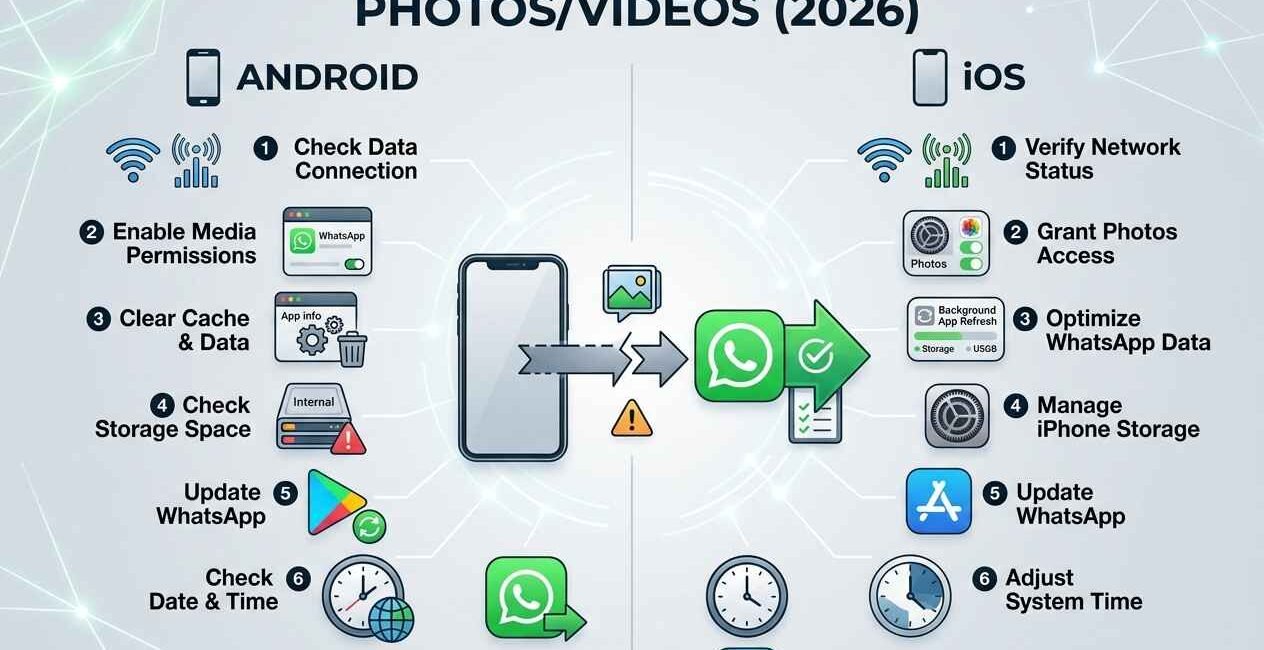
Most of the time, WhatsApp won’t send photos or videos because of one of four things: a weak or restricted internet connection, low phone storage, an outdated app version, or a media file that’s simply too large for the current network. This guide walks through each cause in order, starting with the fastest checks, so you can find the actual reason instead of trying every fix at once.
Why Won’t WhatsApp Send My Photos or Videos?
WhatsApp compresses media before sending it, and that compression step needs a stable connection and free storage to complete. If your phone switches between Wi-Fi and mobile data mid-send, if storage is nearly full, or if you’re on an old app version with a known bug, the send process stalls and shows a spinning clock icon or a red exclamation mark next to the message instead of completing.
Quick Fixes to Try First
- Turn Wi-Fi off and back on, or switch to mobile data (or vice versa)
- Force close WhatsApp and reopen it
- Restart your phone
- Update WhatsApp to the latest version
- Check if WhatsApp servers are down
If the photo or video still won’t send after these five checks, work through the fixes below.
Fix 1: Check Your Connection Type
WhatsApp sends media differently over Wi-Fi than over mobile data, and a network that switches between the two mid-upload is one of the most common causes of a stuck send.
- Open your phone’s Settings and turn off Wi-Fi completely for one minute
- Turn Wi-Fi back on and reconnect to your network
- Re-send the photo or video
- If it still fails, try switching to mobile data entirely and re-sending
Fix 2: Clear WhatsApp’s Cache (Android)
A bloated cache can interfere with how WhatsApp processes outgoing media, especially on phones that haven’t been restarted in a while.
- Go to Settings > Apps > WhatsApp > Storage
- Tap Clear Cache (not Clear Data — that would remove your chats)
- Reopen WhatsApp and try sending the media again
On iPhone, there’s no direct cache-clear option. Instead, offload the app: go to Settings > General > iPhone Storage > WhatsApp > Offload App, then reinstall it from the App Store. Your chat history stays intact because it’s backed up separately.
Fix 3: Lower the Media Upload Quality
By default, WhatsApp tries to send photos and videos at a quality setting that can be too large for a slow or unstable connection.
- Open WhatsApp Settings > Storage and Data
- Under Media Upload Quality, select Data Saver or Auto instead of Best Quality
- Try sending the photo or video again
Fix 4: Free Up Storage Space
WhatsApp needs temporary local storage to compress and stage media before uploading it. If your phone is nearly full, the send process can silently fail.
- Check available storage: Settings > Storage (Android) or Settings > General > iPhone Storage (iOS)
- Free up at least 1–2 GB by deleting unused apps, old downloads, or duplicate photos
- Restart your phone and try sending again
Fix 5: Update WhatsApp
Media-sending bugs are among the most common issues WhatsApp patches in routine updates. If you haven’t updated in a few weeks, this alone can fix the problem.
- Open the Play Store (Android) or App Store (iOS)
- Search for WhatsApp and tap Update if available
- Reopen the app and try again
Fix 6: Check Photo and Storage Permissions
If WhatsApp doesn’t have full access to your photos or files, it may let you select media but fail silently when actually sending it.
- Android: Settings > Apps > WhatsApp > Permissions > make sure Photos/Media/Files is set to Allow
- iPhone: Settings > WhatsApp > Photos > set to All Photos
When Nothing Works: Reinstall WhatsApp
If you’ve tried every fix above and media still won’t send, back up your chats first (Settings > Chats > Chat Backup), then uninstall and reinstall WhatsApp. This resets any corrupted app files without losing your conversation history.
Still Having Trouble?
If photos and videos fail to send only in one specific chat but work fine elsewhere, the issue is usually a corrupted file in that conversation rather than the app itself — try sending a different photo to confirm. If sending fails for everyone you message, check WhatsApp’s server status before troubleshooting further, since the problem may not be on your end at all.

The Seecom is your trusted source for unbiased reviews, expert analysis, and comprehensive comparisons to help you choose with confidence.

Other Articles

How to Fix Netflix Not Working (Error Codes Explained)