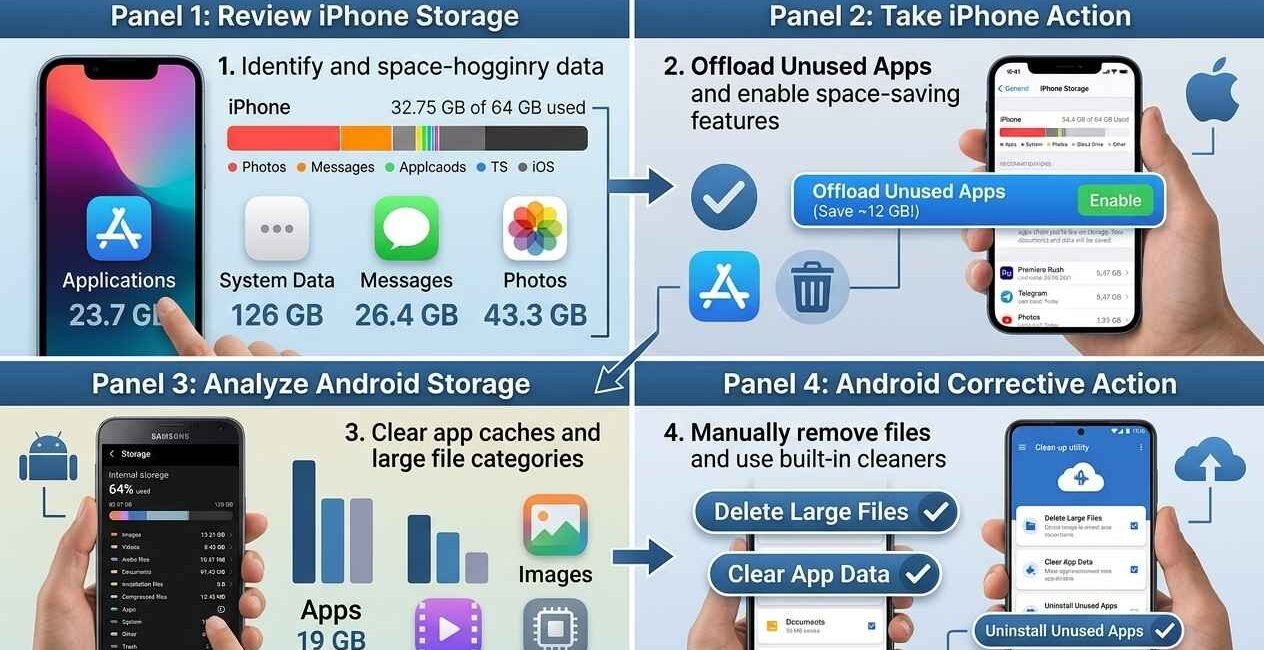
Running out of storage slows down everything from app updates to camera performance, and most phones don’t make it obvious what’s actually taking up the space. This guide covers the fastest ways to find and clear out storage on both Android and iPhone, starting with the biggest wins first.
Check What’s Actually Using Your Storage
On Android: Settings > Storage shows a breakdown by category (Photos, Apps, System, etc.) so you know where to focus.
On iPhone: Settings > General > iPhone Storage shows the same breakdown, plus specific recommendations Apple generates for your device — see Apple’s official storage guide for how to read it.
Fix 1: Delete or Offload Large Apps You Don’t Use
Apps you haven’t opened in months are often the single biggest recoverable chunk of storage, especially games with large asset files.
- Sort your apps list by size (available in both Android and iOS storage settings)
- Uninstall anything you no longer use — your account and progress for most apps are saved in the cloud, not on the device
- On iPhone: use Offload App instead of deleting if you want to keep the app’s data but free the space it uses
Fix 2: Clear App Caches
Apps like browsers, social media, and messaging apps build up cached data over time that serves no purpose beyond temporary loading speed.
Android: Settings > Apps > [App Name] > Storage > Clear Cache, repeated for your largest apps (usually browsers, social apps, and messaging apps take up the most).
iPhone doesn’t offer per-app cache clearing — offloading and reinstalling the app achieves the same result.
Fix 3: Back Up and Remove Photos/Videos
Photos and especially videos are usually the largest single category of storage use on any phone.
- Turn on cloud backup (Google Photos or iCloud Photos) if you haven’t already
- Once everything is safely backed up, use your phone’s built-in “free up space” option, which removes local copies of already-backed-up photos while keeping them accessible from the cloud
- Delete duplicate photos and old screenshots you no longer need — both Google Photos and Apple Photos have a built-in duplicate finder
Fix 4: Clear Downloads and Old Files
- Android: open the Files app and check the Downloads folder — this fills up silently with PDFs, images, and files from browsers and messaging apps
- iPhone: open the Files app and check the Downloads and On My iPhone sections
- Delete anything you no longer need, especially large video or document downloads
Fix 5: Empty Trash / Recently Deleted Folders
Deleted photos and files often sit in a temporary Trash or Recently Deleted folder for 30–60 days before actually freeing up space — if you’re sure you don’t need them back, emptying this manually recovers the space immediately instead of waiting.
Fix 6: Manage Messaging App Media
WhatsApp, Telegram, and similar apps auto-save every photo and video sent in a chat, and this quietly becomes one of the largest storage categories over months of use.
- Open the app’s storage settings (in WhatsApp: Settings > Storage and Data > Manage Storage)
- Review large files and forwarded media specifically — these are usually safe to delete
- Turn off auto-download for media you don’t need saved automatically going forward
Still Running Low?
If you’ve cleared caches, backed up photos, and removed unused apps but storage is still nearly full, check for large system or “Other”/“System Data” categories — these usually shrink after a device restart, since temporary system files get cleared automatically.

The Seecom is your trusted source for unbiased reviews, expert analysis, and comprehensive comparisons to help you choose with confidence.

Other Articles

How to Free Up Storage on Android and iPhone (Complete Guide)
How to Screen Record on Android and iPhone (With Audio)