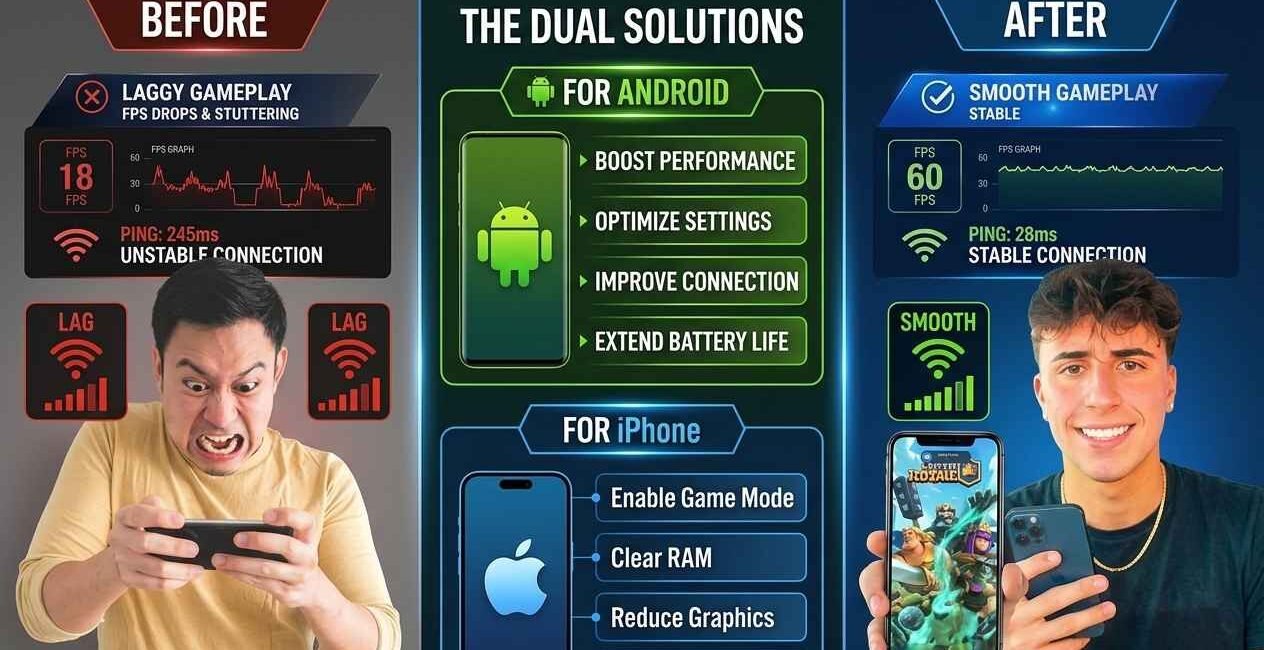
Lag in mobile games almost always comes down to one of four things: your phone overheating and throttling performance, too many background apps competing for RAM, a weak or high-ping connection, or graphics settings set higher than your device can smoothly handle. This guide covers general fixes that work across almost any mobile game, with links to game-specific guides at the end.
Why Do Mobile Games Lag?
Modern mobile games push phone hardware hard — rendering graphics, running physics calculations, and maintaining a live connection to game servers all at once. When your phone’s processor gets too hot, RAM fills up with background apps, or your connection has high latency (ping), the game has to skip frames or delay actions to keep up, which is what you experience as lag, stutter, or input delay.
Quick Fixes to Try First
- Close every other app running in the background
- Lower the game’s graphics settings (resolution, frame rate, shadows/effects)
- Switch from mobile data to Wi-Fi, or vice versa, if one is unstable
- Restart your phone before a gaming session, not just the game
- Let your phone cool down for a few minutes if it feels hot to the touch
Fix 1: Lower In-Game Graphics Settings
This is the single biggest lever you control directly. Most competitive mobile games (battle royale and shooter titles especially) let you trade visual quality for smoother, more consistent frame rates.
- Open the game’s Settings > Graphics menu
- Lower resolution/quality from High or Ultra to Medium or Low
- Turn off shadows, motion blur, and anti-aliasing if available — these cost performance without affecting gameplay
- If the game has a frame rate cap option, set it to match what your device can sustain (30 FPS is often smoother than an unstable 60 FPS on mid-range phones)
Fix 2: Free Up RAM and Close Background Apps
- Open your phone’s recent apps view and swipe away everything except the game
- Disable auto-syncing apps (cloud backup, social media) while gaming, since they run background tasks that compete for memory
- On Android, many phones have a built-in Game Mode or Game Booster (Settings > Battery/Performance > Game Mode) that automatically frees resources during gameplay — turn this on if available
Fix 3: Manage Heat and Battery
Phones automatically slow themselves down (thermal throttling) once internal temperature crosses a safety threshold, and this is one of the most common causes of games getting progressively laggier the longer you play.
- Remove thick phone cases while gaming, since they trap heat
- Avoid charging your phone while playing intensive games — charging generates extra heat
- Take short breaks every 20–30 minutes during long sessions to let the device cool
Fix 4: Check Your Connection (Ping)
For online multiplayer games specifically, lag is often a ping (latency) issue rather than a performance issue — the game itself runs smoothly, but actions feel delayed.
- Connect to Wi-Fi instead of mobile data where possible, since it’s typically more stable
- Move closer to your router, or use a 5GHz Wi-Fi band if your router supports it
- Close other devices on your network streaming video or downloading large files during gameplay
- Some games show your ping in-game — if it’s consistently above 100ms, the issue is network-side, not your device
Fix 5: Clear Cache and Update the Game
- Go to Settings > Apps > [Game Name] > Storage > Clear Cache (Android)
- Check the Play Store or App Store for a pending update — game updates frequently include performance fixes
- Restart the game after updating
Fix 6: Free Up Phone Storage
Games use free storage as temporary working space while running. A phone that’s nearly full can cause stutter even with good hardware.
- Check available storage in your phone’s Settings
- Free up at least 2–3 GB by removing unused apps, old downloads, or duplicate photos
- Restart your phone and relaunch the game
Game-Specific Fixes
If you’re dealing with crashing or freezing rather than general lag in a specific title, check our dedicated guides: Free Fire lag & crash fix and BGMI crash-on-launch fix.

The Seecom is your trusted source for unbiased reviews, expert analysis, and comprehensive comparisons to help you choose with confidence.

Other Articles

How to Fix Snapchat Stuck on Sending (Snaps Not Sending)
How to Calculate Overtime Pay (Time and a Half Formula, 2026)