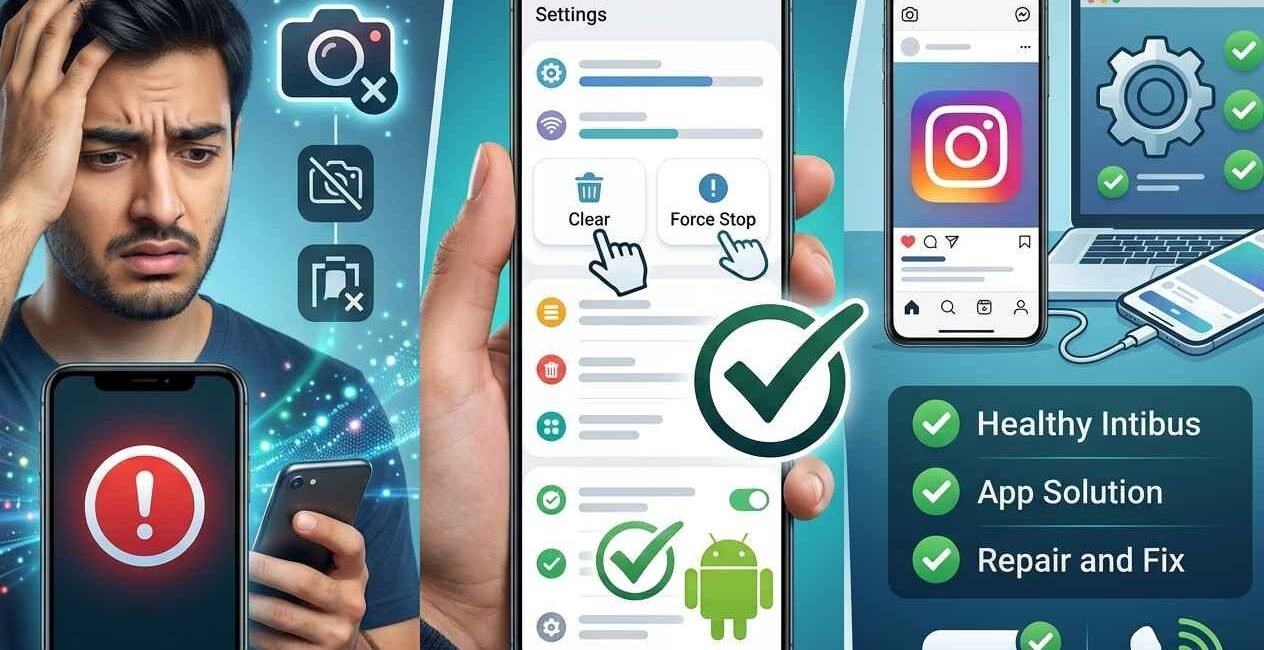
If Instagram keeps closing the moment you open it, freezes mid-scroll, or crashes every time you try to post a Reel, you’re not alone — it’s one of the most commonly searched app-crashing problems on both Android and iOS. The good news is that Instagram crashing is almost always fixable without losing your account, photos, or saved posts. This guide covers 8 verified solutions, cross-checked against official platform help resources including Meta’s own Instagram Help Center and Google Play’s app troubleshooting documentation, ordered from fastest to most advanced.
Most Instagram crashes are fixed by force-stopping the app and clearing its cache/data, updating Instagram from the Play Store or App Store, restarting your phone, checking your storage and available memory, and — if none of that helps — a full uninstall and reinstall.
Why Does Instagram Keep Crashing?
Instagram is a heavier app than it looks, constantly loading high-resolution photos, video, Reels, and Stories while syncing in the background. The most common causes of crashes are:
- Corrupted cache or app data that has built up over time and conflicts with the current app version
- An outdated Instagram app that hasn’t kept pace with a recent server-side change Meta has rolled out
- Low device storage, which prevents Instagram from caching new media as you scroll
- Low available RAM, especially with many background apps competing for memory
- A buggy Instagram update — Meta occasionally ships versions with bugs that are patched within days
- An outdated operating system no longer fully compatible with the latest Instagram build
- Conflicting background apps, particularly aggressive battery-saver or “cleaner” apps
- A server-side outage on Meta’s end, unrelated to your device at all
Solution 1: Force Stop the App and Clear Cache/Data
This is the fastest and most effective first step, and it never deletes your Instagram account, followers, or posts, since all of that lives on Meta’s servers, not your device.
On Android:
- Open Settings > Apps (or Apps & notifications)
- Find and tap Instagram
- Tap Force stop, then confirm
- Tap Storage & cache > Clear cache
- If the crash continues, go back and tap Clear storage (or Clear data) as well — this resets the app’s local settings but still doesn’t touch your account
- Reopen Instagram and log back in if prompted
On iOS: iPhone doesn’t offer a direct cache-clearing option per app, so the equivalent is offloading the app (see Solution 5 below) or clearing Instagram’s cache from within the app itself:
- Open Instagram and go to your profile > tap the ☰ menu > Settings and privacy
- Go to Account Center > your account > Personal details, or search “Clear cache” within Instagram’s own settings menu (location varies by app version)
- If no in-app option is available, force close Instagram by swiping it away in the app switcher, then reopen it
Solution 2: Update the App from Play Store / App Store
An outdated version is one of the single most common causes of recurring Instagram crashes, since Meta frequently patches bugs in point releases.
- Open the Google Play Store (Android) or the Apple App Store (iOS)
- Search for Instagram
- If an Update button appears instead of “Open,” tap it and wait for the install to finish
- Restart your phone after updating, then reopen Instagram
Solution 3: Restart the Smartphone
A full device restart clears temporary memory issues and stuck background processes that force-stopping the app alone won’t always fix.
- Press and hold your phone’s power button until the restart/power menu appears
- Tap Restart
- Once your phone boots back up, open Instagram and test whether the crash is resolved
Solution 4: Check System Storage & RAM
Instagram needs both free storage (to cache media) and free RAM (to run smoothly alongside other open apps) to avoid crashing.
Check storage (Android & iOS):
- Go to Settings > Storage (Android) or Settings > General > iPhone Storage (iOS)
- Confirm you have at least 1–2 GB free — Instagram’s own cached photos and videos can quietly consume several hundred MB over time
- Delete unused apps, old downloads, or large media files if space is tight
Free up RAM:
- Close unused background apps via your recent apps/app switcher screen
- Avoid running multiple heavy apps (games, video editors, streaming apps) at the same time as Instagram on lower-RAM devices
Solution 5: Offload/Reinstall the App (iOS-Specific Extra Step)
Before a full reinstall, iPhone users can try offloading Instagram, which clears out corrupted app files while keeping some data intact.
- Go to Settings > General > iPhone Storage
- Find and tap Instagram
- Tap Offload App
- Reinstall Instagram from the App Store when prompted, then log back in
Solution 6: Check for a Meta/Instagram Server Outage
Sometimes the problem genuinely isn’t your device at all. Before spending more time troubleshooting, check whether Instagram is experiencing a wider outage.
- Visit a live outage tracker such as Downdetector’s Instagram status page
- If thousands of other users are reporting problems at the same time, the issue is server-side and will resolve once Meta fixes it on their end
- You can also check Instagram’s own Help Center for any posted service status updates
Solution 7: Reinstall the App
If cache clearing, updating, and restarting haven’t resolved the crash, a clean reinstall fixes the overwhelming majority of remaining cases, since it replaces every local file with a fresh copy.
On Android:
- Long-press the Instagram icon and tap Uninstall, or go to Settings > Apps > Instagram > Uninstall
- Restart your phone
- Reinstall Instagram from the Google Play Store and log back in
On iOS:
- Long-press the Instagram icon and tap Remove App > Delete App
- Restart your iPhone
- Reinstall Instagram from the App Store and log back in
Solution 8: Disable Battery Optimization / Background Restrictions
Aggressive battery management, especially on Samsung, Xiaomi, and OnePlus devices, can forcibly kill Instagram’s background processes, which sometimes shows up as random crashes rather than a clean close.
On Android:
- Go to Settings > Battery > Battery optimization (naming varies; check Samsung’s official support site or Xiaomi’s official support site for your specific device’s menu path)
- Find Instagram in the list
- Set it to Don’t optimize or Unrestricted
On iOS:
- Go to Settings > General > Background App Refresh
- Make sure the main toggle is on, and that Instagram’s individual toggle is also enabled
Why Instagram Crashes More Often With Reels and Live Videos
Reels and Live video are the most resource-intensive parts of the Instagram app, since they require real-time video decoding, effects rendering, and audio processing simultaneously. If your crashes happen specifically when opening Reels or going Live, and not elsewhere in the app, the underlying cause is very likely low available RAM or an older device’s GPU struggling to keep up — Solutions 3, 4, and 8 above are the most effective for this specific pattern.
Instagram Crashing After Logging Into a New or Second Account
Managing multiple Instagram accounts on one device can occasionally trigger crashes, especially right after adding a new account or switching between several.
- Go to your profile, tap your username at the top, and review how many accounts are currently logged in
- Log out of accounts you no longer actively use — Instagram allows switching between accounts, but keeping too many signed in simultaneously can strain the app’s local storage and caching
- If the crash started right after adding a specific account, log out of that account, force stop the app, clear cache (Solution 1), and log back in
Instagram Crashing When Uploading Photos or Videos
If Instagram opens fine but crashes specifically when you try to post a photo, Reel, or Story, the cause is usually different from a general launch crash:
- Check the file size and format. Very large video files, especially 4K footage from a newer phone camera, can overwhelm Instagram’s upload process on older devices
- Check your internet connection. An unstable Wi-Fi or mobile data connection during upload can cause the app to hang and then crash rather than showing a clear error
- Try uploading a smaller or shorter clip first to confirm whether file size is the underlying issue
- Clear the Gallery/Photos app cache on Android, since Instagram pulls directly from it during the upload flow, and a corrupted gallery cache can indirectly cause the crash
Preventing Instagram Crashes in the Future
- Keep Instagram updated to its latest version at all times via automatic updates
- Maintain at least 10–15% free storage on your device
- Periodically clear Instagram’s cache even before a crash occurs, especially if you use Stories and Reels heavily
- Avoid installing aggressive third-party “cleaner” or “booster” apps that can interfere with Instagram’s background processes
- On older or lower-RAM devices, consider switching to Instagram Lite for a lighter, more stable experience
When to Report the Bug to Meta Directly
If you’ve worked through all 8 solutions and Instagram still crashes consistently, it’s worth reporting the issue directly so Meta’s engineering team can investigate device-specific bugs.
- Open Instagram (if it stays open long enough) and go to Settings and privacy > Help > Report a problem
- Describe exactly when the crash happens — on launch, while scrolling, during upload, or in Reels specifically
- Include your device model and OS version, since this helps Meta identify patterns affecting particular hardware
- If Instagram won’t open at all, check Meta’s Instagram Help Center directly through a browser for alternative reporting options
Frequently Asked Questions
Why does Instagram keep crashing on my phone?
The most common causes are a corrupted app cache, an outdated Instagram version, low storage or RAM, or a temporary bug in a recently released update. Clearing cache and updating the app fix the majority of cases.
Will I lose my Instagram account if I uninstall and reinstall the app?
No. Your account, followers, posts, and messages are stored on Meta’s servers, not your device, so uninstalling and reinstalling Instagram is completely safe as long as you remember your login details.
Why does Instagram crash specifically when I open Reels?
Reels are more resource-intensive than regular posts due to real-time video decoding and effects. This crash pattern usually points to low available RAM or an older device’s hardware struggling to keep up, rather than a general app fault.
Is Instagram down right now?
Check a live outage tracker like Downdetector’s Instagram status page to confirm whether the crash is a widespread server issue rather than something specific to your device.
Does clearing Instagram’s cache delete my saved posts or messages?
No. Clearing cache only removes temporary files and doesn’t touch your account data, saved posts, or direct messages, all of which are stored on Meta’s servers.
Why does Instagram crash right after I update my phone’s operating system?
A new OS version can occasionally introduce compatibility issues with the current Instagram build until Meta ships a follow-up update. Updating Instagram itself to the latest available version (Solution 2) usually resolves this quickly.
Does using Instagram Lite fix crashing problems?
On lower-end Android devices with limited RAM and storage, the lighter Instagram Lite app (available on the Google Play Store) can reduce crashes significantly, since it’s built specifically to use fewer device resources.
Instagram crashing is disruptive but almost never a sign of a serious device or account problem. Work through these 8 solutions in order — starting with a force stop and cache clear, then updating the app, restarting your phone, and checking storage and RAM — before moving to a full reinstall. If crashes persist across many users at once, it’s most likely a temporary bug on Meta’s end that a follow-up update will resolve.

The Seecom is your trusted source for unbiased reviews, expert analysis, and comprehensive comparisons to help you choose with confidence.

Other Articles

How to Fix Instagram Keeps Crashing on Android & iOS (2026)
How to Fix Android Camera App Crashing Continuously (Complete 2026 Guide)