






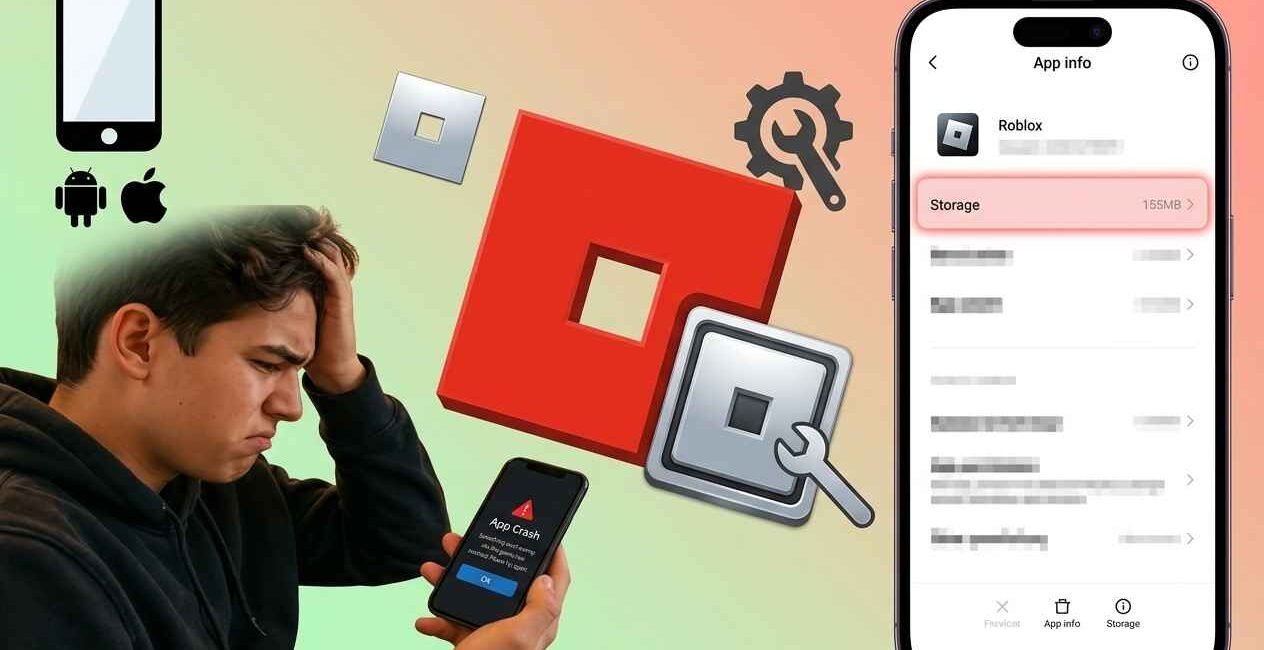
If Roblox closes the moment a game finishes loading, freezes mid-session, or dumps you back on your home screen with no warning, you’re dealing with one of the most common mobile gaming problems on iOS and Android. The good news: Roblox crashing is almost always fixable, and most players resolve it within a few minutes using the steps below, ranked from fastest to most advanced.
Most Roblox crashes on mobile are caused by low device memory (RAM), insufficient storage, an outdated app or OS, or graphics settings that are too demanding for your device. Force-closing the app, freeing up storage, lowering graphics quality, and updating both Roblox and your operating system fix the overwhelming majority of cases. If crashes persist, a clean reinstall usually resolves what’s left.
Why Does Roblox Keep Crashing on Mobile?
Roblox is unusual compared to most mobile apps because every “game” (called an experience) is actually separate user-generated content, loaded fresh each time from Roblox’s servers. This makes it more resource-hungry than a typical app, and more prone to crashes from a wider range of causes:
- Low available RAM — mobile operating systems will forcibly close Roblox if memory gets too tight, especially with many background apps open
- Low storage space — Roblox needs free space to download and cache game assets as an experience loads
- Outdated app or OS version — Roblox pushes frequent updates, and running an old build against new experiences is a common crash trigger
- Demanding graphics settings — some experiences are graphically intensive, and older or budget devices can crash trying to render them
- Server-side issues on Roblox’s end — sometimes specific experiences or Roblox’s servers themselves are down
- Corrupted app cache or data — temporary files that build up and conflict with new updates
- Screen Time / parental control limits — app limits or downtime restrictions can abruptly force-close Roblox mid-session on iOS
- A specific in-game bug — occasionally, a bug in one particular experience (not Roblox itself) causes repeated crashes only in that game
Universal Quick Fixes (Try These First — Works on Both iOS and Android)
These checks resolve the majority of Roblox crashes and take just a few minutes:
- Check Roblox’s status page. Before touching any settings, visit status.roblox.com to rule out a server-side outage — if Roblox itself is down, no amount of troubleshooting on your device will help.
- Force close and reopen Roblox. Swipe up to the app switcher, swipe Roblox away completely, then relaunch it.
- Restart your device. Power it fully off for 30 seconds, then back on — this clears memory and often resolves crashes that force-closing alone doesn’t fix.
- Close every background app. Other open apps compete for the same limited RAM that Roblox needs to load an experience.
- Update Roblox. Open the App Store or Google Play Store, search Roblox, and install any pending update — many crash-fixing patches ship silently.
- Check your date and time settings. An incorrect device clock can break Roblox’s connection to its servers and cause immediate crashes on launch.
If none of these resolve it, move on to the platform-specific and cause-specific steps below.
How to Fix Roblox Crashing on Android
Step 1: Clear Roblox’s Cache
Cached data is one of the most common Android crash triggers, and clearing it doesn’t delete your Roblox account or game progress, since that’s saved to Roblox’s servers, not your device.
- Open Settings > Apps (or Apps & notifications)
- Find and tap Roblox
- Tap Storage & cache
- Tap Clear cache
- Reopen Roblox and try loading an experience again
Step 2: Free Up Storage Space
- Go to Settings > Storage
- Confirm you have at least 1–2 GB free — Roblox needs room to download game assets as experiences load
- Delete unused apps, old downloads, or large media files if space is tight
Step 3: Lower In-Game Graphics Settings
On lower-end or older Android devices, high graphics settings inside a demanding experience can cause the app to crash.
- Open Roblox and join any experience
- Tap the three-dot menu (⋯) in the top-right corner
- Go to the Settings tab and lower the Graphics Quality slider, or set it to manual mode and reduce it further
- Rejoin the experience that was crashing and test again
Step 4: Check for Android and Roblox Updates
- Open Settings > System > System update, and install any pending Android update
- Open the Google Play Store, search Roblox, and install any pending app update
- Restart your device afterward
Step 5: Disable Battery Optimization for Roblox
Aggressive battery management on some Android skins (Samsung, Xiaomi, OnePlus especially) can kill resource-heavy apps like Roblox in the background, sometimes causing crashes during loading screens.
- Go to Settings > Battery > Battery optimization
- Find Roblox in the app list
- Set it to Don’t optimize or Unrestricted
Step 6: Uninstall and Reinstall Roblox
Since your account and progress live on Roblox’s servers, reinstalling is safe and resolves most remaining Android crash cases.
- Uninstall Roblox from your app drawer or the Play Store
- Restart your device
- Reinstall Roblox from the Google Play Store and log back into your account
How to Fix Roblox Crashing on iOS (iPhone/iPad)
Step 1: Offload the App (Clears Data Without Losing Your Account)
Offloading removes the app itself while keeping certain local data, and clears out corrupted app files that a simple restart won’t touch.
- Go to Settings > General > iPhone Storage
- Find and tap Roblox
- Tap Offload App
- Reinstall Roblox from the App Store when prompted, then log back in
Step 2: Free Up iPhone or iPad Storage
- Go to Settings > General > iPhone Storage
- Review the largest apps and offload or delete what you don’t need
- Roblox generally needs several hundred MB of free space at minimum to reliably load graphically intensive experiences
Step 3: Check Screen Time Settings
If Screen Time app limits or downtime are active, they can force-close Roblox mid-session without an obvious warning.
- Go to Settings > Screen Time > App Limits
- Remove or adjust any limit applied to Roblox
- Also check Downtime and make sure it isn’t scheduled to activate during your play session
Step 4: Disable Low Power Mode
Low Power Mode throttles background performance and GPU output on iPhone, which can trigger crashes in graphically demanding Roblox experiences.
- Open Control Center and tap the battery icon to turn off Low Power Mode, or
- Go to Settings > Battery and toggle Low Power Mode off
Step 5: Update iOS
- Go to Settings > General > Software Update
- Install any available iOS update — Apple has previously shipped fixes for GPU-related crash bugs that specifically affected graphically intensive apps like Roblox
- Restart your device afterward
Step 6: Delete and Reinstall Roblox
- Long-press the Roblox icon and tap Remove App > Delete App
- Restart your iPhone or iPad
- Reinstall Roblox from the App Store and log back into your account
Understanding Common Roblox Error Codes
If Roblox shows an actual error code instead of crashing silently, that code points to a specific cause:
- Error 286 — the experience can’t load because your device doesn’t have enough available memory; close background apps and free up RAM before rejoining
- Error 292 — a low-memory warning appearing mid-game; save your progress where possible and restart the app to clear memory
- Error 267 / disconnection errors — usually point to an unstable internet connection rather than a device problem; switch between Wi-Fi and mobile data to test
- Error 906 / 907 — typically related to file or asset loading issues, often fixed by clearing cache (Android) or offloading the app (iOS)
If you encounter a code not listed here, Roblox’s official Support site maintains an updated list of error codes with specific fixes for each one.
Why Roblox Crashes More on Older or Budget Devices
Roblox experiences vary enormously in how demanding they are — a simple obby (obstacle course) runs fine on almost anything, while a graphically rich RPG-style experience can push even mid-range phones to their limits. If you consistently see crashes only in specific high-detail experiences, and never in simpler ones, the cause is very likely your device’s hardware reaching its limit rather than a bug. In this case, lowering in-game graphics settings (Step 3 above) is the most effective fix, since it directly reduces the load Roblox places on your device’s GPU and memory.
Roblox Crashing on a Specific Experience Only
If Roblox runs fine everywhere except one particular game, the bug is usually in that experience’s own code rather than in Roblox itself. To confirm this:
- Try loading two or three other well-known experiences to see if they crash too
- If only the one experience crashes, check that specific game’s community page or Discord for other players reporting the same issue
- Wait for the experience’s creator to patch it, since this type of crash isn’t something a device-side fix can resolve
How to Prevent Roblox From Crashing Again
- Keep Roblox and your device’s OS updated to their latest stable versions at all times
- Maintain at least 10–15% free storage on your device
- Close unused background apps before starting a play session
- Lower graphics quality proactively on older or budget devices rather than waiting for a crash
- Avoid enabling Low Power Mode (iOS) while actively playing
- Restart your device every few days to clear accumulated background memory usage
Roblox Crashing Right After an App or Studio Update
Occasionally, a new Roblox update itself introduces a temporary bug that causes widespread crashes across many devices, not just yours. Signs this is what’s happening include:
- The crashes started suddenly right after you noticed an app update
- Roblox’s official social media accounts or DevForum are full of similar reports from other players
- The crash happens on launch, before you’ve even selected an experience
If this matches your situation, there’s little to fix on your end beyond waiting for a follow-up patch. You can speed up recovery by checking status.roblox.com and the Roblox DevForum for acknowledgment of the issue, and by making sure you install the very next update as soon as it’s available, since post-launch hotfixes for these bugs are usually rolled out within a day or two.
Roblox Crashing on Shared or Family Devices
If multiple people use the same tablet or phone for Roblox, crashes can also stem from too many saved accounts, cached data from multiple profiles, or conflicting parental control apps layered on top of each other. In this situation:
- Make sure only one parental control or screen-time app is actively managing the device — running two at once (for example, both Apple’s built-in Screen Time and a third-party app) can create conflicts that force-close Roblox unpredictably
- Log out of unused Roblox accounts rather than keeping several signed in and switching between them
- Clear the app’s cache (Android) or offload it (iOS) after removing old accounts to fully reset its local data
Frequently Asked Questions
Why does Roblox keep crashing on my phone?
The most common causes are low available RAM, low storage space, an outdated app or OS version, or graphics settings too demanding for your device. Closing background apps, freeing storage, and updating Roblox resolve most cases.
Will I lose my progress if I uninstall and reinstall Roblox?
No. Your account, inventory, and game progress are stored on Roblox’s servers, not your device, so uninstalling and reinstalling the app is completely safe.
What does Roblox error 286 mean? Error 286 means your device doesn’t have enough available memory to load the experience. Close background apps, restart your device, and try again with more free RAM.
Why does Roblox crash only in certain games?
If Roblox runs fine elsewhere but crashes in one specific experience, the bug is most likely inside that experience’s own code rather than a device or app problem, and requires a fix from that experience’s creator.
Does lowering graphics settings actually stop Roblox from crashing?
Yes, for crashes caused by hardware strain. Reducing graphics quality lowers the load on your device’s GPU and memory, which is one of the most effective fixes on older or budget phones and tablets.
Is Roblox down right now?
Check status.roblox.com for real-time server status before assuming the problem is with your device.
Why does Roblox close by itself on my iPad during Screen Time?
Active Screen Time app limits or scheduled downtime can force-close Roblox mid-session on iOS. Adjust or remove these restrictions in Settings > Screen Time.
Roblox crashing on mobile is almost always tied to memory, storage, graphics settings, or an outdated app — not a serious device fault. Start with the universal quick fixes, move into the Android or iOS steps that match your device, and use the error code you’re seeing (if any) to pinpoint the exact cause. If a clean reinstall still doesn’t help, the issue is most likely specific to one experience or a temporary bug that Roblox will resolve in a future update.

The Seecom is your trusted source for unbiased reviews, expert analysis, and comprehensive comparisons to help you choose with confidence.

Other Articles

How to Fix Free Fire Auto Back/Crash Issue (2026 Guide)
