






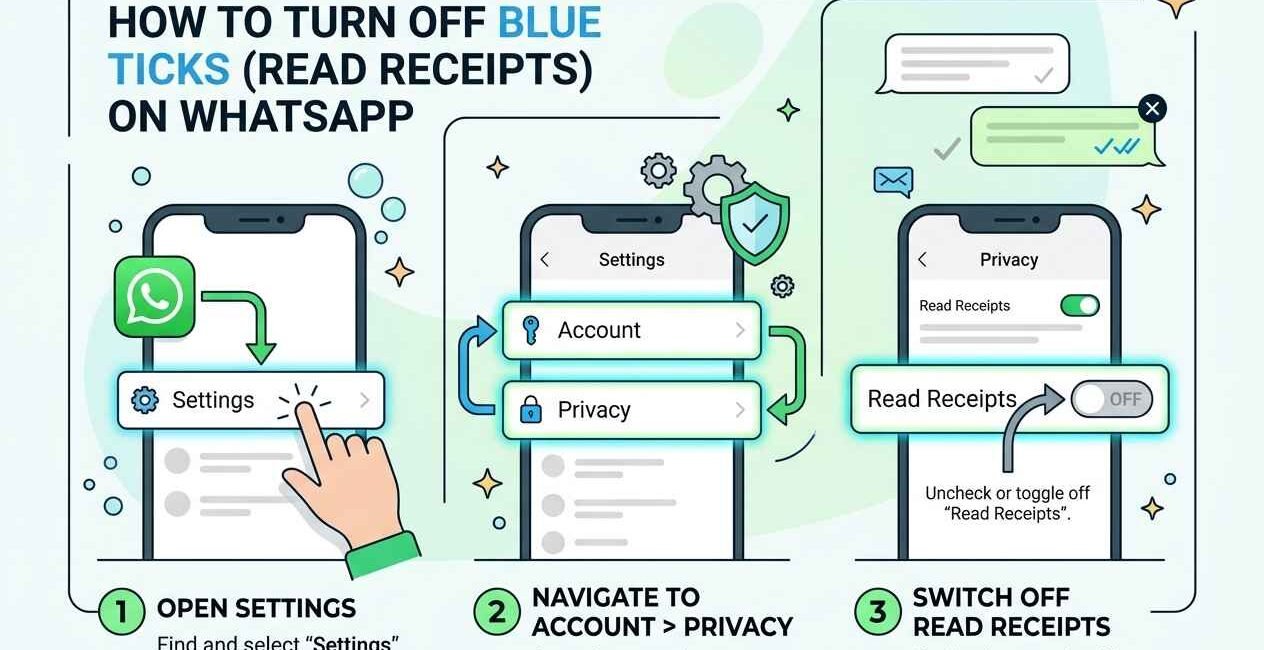
WhatsApp’s blue ticks (read receipts) tell the sender exactly when you’ve seen their message — and turning them off is one of the most searched WhatsApp privacy settings worldwide. Here’s exactly how to disable them, plus the trade-offs most people don’t realize until after they’ve turned the setting off.
What Are Blue Ticks (Read Receipts) on WhatsApp?
WhatsApp shows two grey ticks when a message is delivered, and turns them blue once the recipient opens the chat and views the message. Read receipts also apply inside group chats (shown as a list of who’s read a message) and to voice notes and media.
How to Turn Off Blue Ticks on WhatsApp
- Open WhatsApp and tap the three-dot menu (Android) or Settings (iPhone)
- Go to Settings > Privacy
- Scroll down and toggle off Read Receipts
This setting applies immediately to all one-on-one chats and takes effect the next time you open a conversation.
The Trade-Off Nobody Mentions: It Works Both Ways
WhatsApp explicitly states that if you turn off read receipts, you also won’t be able to see when other people have read your messages. It’s an all-or-nothing setting — you can’t hide your own read status while keeping visibility into everyone else’s. This is confirmed directly in WhatsApp’s official Help Center.
Do Group Chats Work the Same Way?
No. Turning off read receipts does not hide your read status in group chats. WhatsApp still shows group members who has read a message, and this part cannot be switched off. In short, the setting controls blue ticks in one-to-one chats only.
Voice messages are another exception. The play receipt, which tells the sender that you listened to a voice note, is still sent even when read receipts are off. This is also described in Android Central’s guide to disabling read receipts.
What Still Shows Even With Read Receipts Off
- Group chat read receipts still show, because this setting does not apply to groups
- Voice message play receipts still show when you listen to a voice note
- Delivery ticks (grey) still show — only the blue “read” status is hidden, not delivery confirmation
- Online status and “last seen” are controlled separately, under Settings > Privacy > Last Seen and Online
- Typing indicators (“typing…”) still show unless you also disable them, though this isn’t a separate toggle — it’s tied to your overall privacy settings on some app versions
What the Different Ticks Mean
- One grey tick: the message was sent from your phone but has not reached the recipient’s phone yet
- Two grey ticks: the message was delivered to the recipient’s phone
- Two blue ticks: the recipient opened the chat and the message was read
With read receipts turned off, a person who has read your message will still show two grey ticks to you, and you will show two grey ticks to them.
Turning Off Read Receipts on iPhone vs Android
The setting is in the same place on both platforms, but the menu you start from is different.
- iPhone: open WhatsApp, tap the Settings tab at the bottom right, then tap Privacy and switch off Read Receipts.
- Android: open WhatsApp, tap the three dots at the top right, tap Settings, then Privacy, and switch off Read Receipts.
If you use WhatsApp Web or the desktop app, you do not need to change anything there. The setting belongs to your account, so it applies on your linked devices as well.
Should You Turn Read Receipts Off?
Many people switch them off to avoid feeling pressured to reply immediately, or because they want to read a message and answer when they have time. On the other hand, blue ticks are also useful. They confirm that an important message, such as a delivery time, an appointment, or a work instruction, was actually seen. If you keep them off, remember that you lose that confirmation too. A good middle ground is to leave them on for work chats and rely on a short reply when something is urgent.
Review Your Other Privacy Settings
While you are in Settings > Privacy, it is worth running through the other options. You can control who sees your last seen and online status, profile photo, About, and status updates, and who can add you to groups. WhatsApp also offers a Privacy Checkup tool in the same menu that walks you through the most important choices step by step.
Can You Hide Read Receipts for Just One Person?
No — WhatsApp’s native settings only offer an all-or-nothing toggle for read receipts. There is no built-in way to hide your read status from one specific contact while keeping it visible to others. Be cautious of any third-party app or mod claiming to offer this — these typically violate WhatsApp’s terms of service and can put your account at risk of being banned.
A Workaround: Read Messages from the Notification Preview
If you want to read a message without triggering a blue tick at all (rather than just hiding it from the sender), you can often read the full text from the notification banner or Notification Center without opening the chat — this doesn’t mark the message as read in WhatsApp at all, blue ticks or not.
Related WhatsApp Privacy Settings
If message-read privacy matters to you, it’s worth reviewing your full privacy setup in one pass — profile photo visibility, last seen, and status visibility are all controlled from the same WhatsApp Privacy settings page, and can be set independently of the read receipts toggle.
Other Ways to Reduce Pressure to Reply Instantly
Read receipts are only one part of feeling always available. You can also mute noisy chats so you are not pulled into them, turn off notification previews if you do not want messages to appear on your lock screen, and archive conversations you do not need to see. Setting your own routine, such as checking messages at set times of day, usually works better than hiding one status indicator, because it removes the pressure instead of masking it.
It also helps to tell close contacts how you use the app. A short note explaining that you have turned off read receipts and will reply when you can prevents misunderstandings with friends, family, or colleagues who may otherwise assume you are ignoring them.
Frequently Asked Questions
Will people know that I turned off read receipts?
WhatsApp does not send a notification about it. They may notice that your messages never turn blue, but they will not be told that you changed the setting.
Why do I still see blue ticks after turning the setting off?
You are most likely looking at a group chat or a voice message. Both keep their read or play indicators regardless of this setting.
Can I turn read receipts back on later?
Yes. Go back to Settings > Privacy and switch Read Receipts on again. New messages will show blue ticks from that point.
Does turning it off stop people from seeing when I am online?
No. Last seen and online status are separate settings in the same Privacy menu, and you need to change them separately.

The Seecom is your trusted source for unbiased reviews, expert analysis, and comprehensive comparisons to help you choose with confidence.

Other Articles

VocalNewsMedia Com: A Guide to News, Technology & Trends
How to Fix TikTok Video Not Uploading (Stuck at 0%)