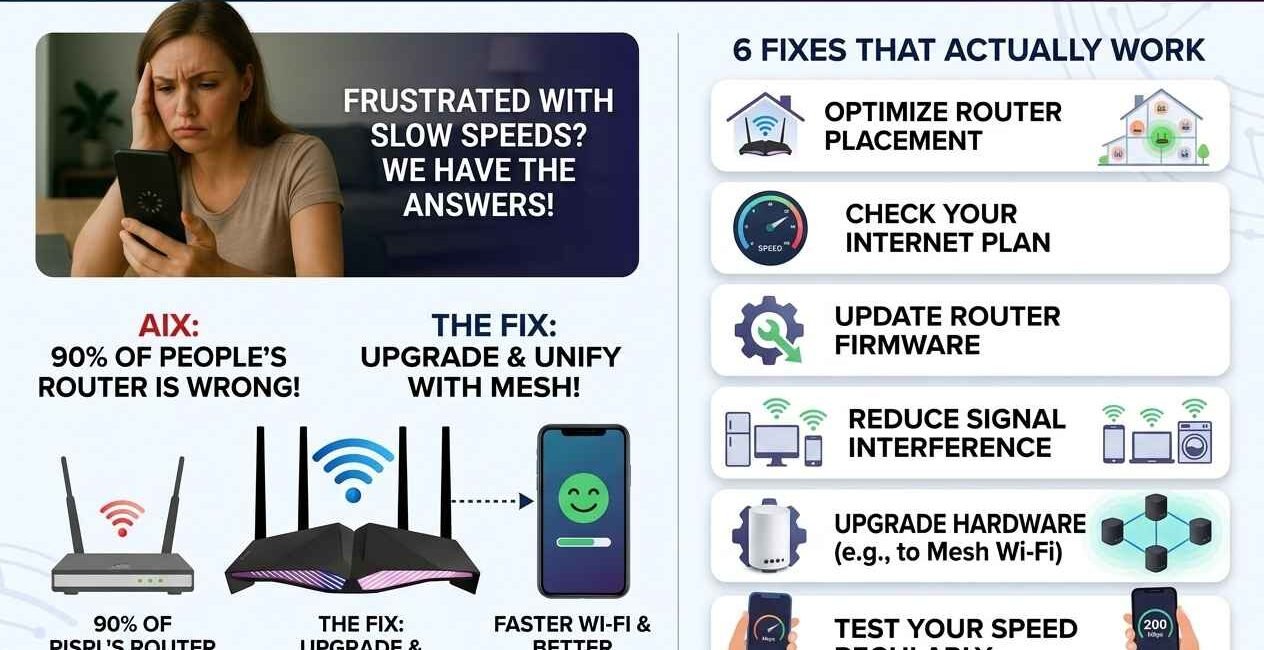
Slow Wi-Fi almost always comes down to one of five things: too many devices competing for bandwidth, router placement, wireless interference, an outdated router or firmware, or an internet plan that simply isn’t fast enough for how your household actually uses it. This guide checks each cause in order, starting with fixes that take two minutes.
Quick Fixes to Try First
- Restart your router and modem (unplug for 30 seconds, then plug back in)
- Move closer to the router, or move the router to a more central location
- Disconnect devices you’re not actively using
- Pause any large downloads or streaming on other devices
- Run a speed test to confirm what speed you’re actually getting
If Wi-Fi is still slow after these checks, work through the fixes below.
Fix 1: Reposition Your Router
Wi-Fi signal weakens through walls, floors, and distance, and router placement is one of the most overlooked causes of slow speeds in specific rooms.
- Place the router in a central, elevated location — not inside a cabinet or behind a TV
- Keep it away from microwaves, cordless phones, and thick concrete or brick walls
- If one room is consistently slow, a Wi-Fi extender or mesh system can fill the gap
Fix 2: Switch to the Less Congested Band
Most modern routers broadcast both 2.4GHz and 5GHz bands. 2.4GHz reaches farther but is slower and more congested (shared with many household devices); 5GHz is faster but has shorter range.
- Check your Wi-Fi settings for two separate networks, or one that auto-switches bands
- Connect devices near the router to the 5GHz band for maximum speed
- Use 2.4GHz for devices farther away or with thick walls in between
Fix 3: Reduce the Number of Connected Devices
Every connected device shares your total bandwidth. Smart home devices, streaming boxes, and old phones you forgot were still connected all quietly eat into your speed.
- Log into your router’s admin panel and check the list of connected devices
- Disconnect or forget devices you no longer use
- Change your Wi-Fi password periodically to remove unknown/neighboring devices piggybacking on your network
Fix 4: Update Your Router’s Firmware
Router manufacturers release firmware updates that fix performance bugs and security issues, but most routers don’t update automatically.
- Log into your router’s admin panel (usually via a browser at 192.168.1.1 or 192.168.0.1)
- Look for a Firmware Update or System Update section
- Install any available update and restart the router
Fix 5: Check for Interference from Other Networks
In apartments and dense housing, dozens of nearby Wi-Fi networks can overlap on the same channel, slowing everyone down.
- Most router apps show a Wi-Fi channel analyzer, or you can use a free app like Wi-Fi Analyzer
- Switch your router to a less congested channel if most neighbors are on the default one
- Many modern routers can do this automatically — look for an “Auto Channel” setting
Fix 6: Confirm Your Internet Plan Matches Your Usage
If several people in your household stream, game, and video call at the same time, a basic internet plan may genuinely not have enough bandwidth — this isn’t a technical fault, just a capacity limit.
- Run a speed test and compare it to what you’re paying for
- As a rough guide, allow roughly 10–25 Mbps per person doing HD streaming or video calls simultaneously
- Contact your provider if your actual speed is consistently far below what you’re paying for
Still Slow?
If speed is fine on a wired connection but slow only over Wi-Fi, the issue is almost certainly the router or its placement rather than your internet plan. If wired speed is also slow, contact your internet provider — the problem is likely upstream of your home network entirely.

The Seecom is your trusted source for unbiased reviews, expert analysis, and comprehensive comparisons to help you choose with confidence.