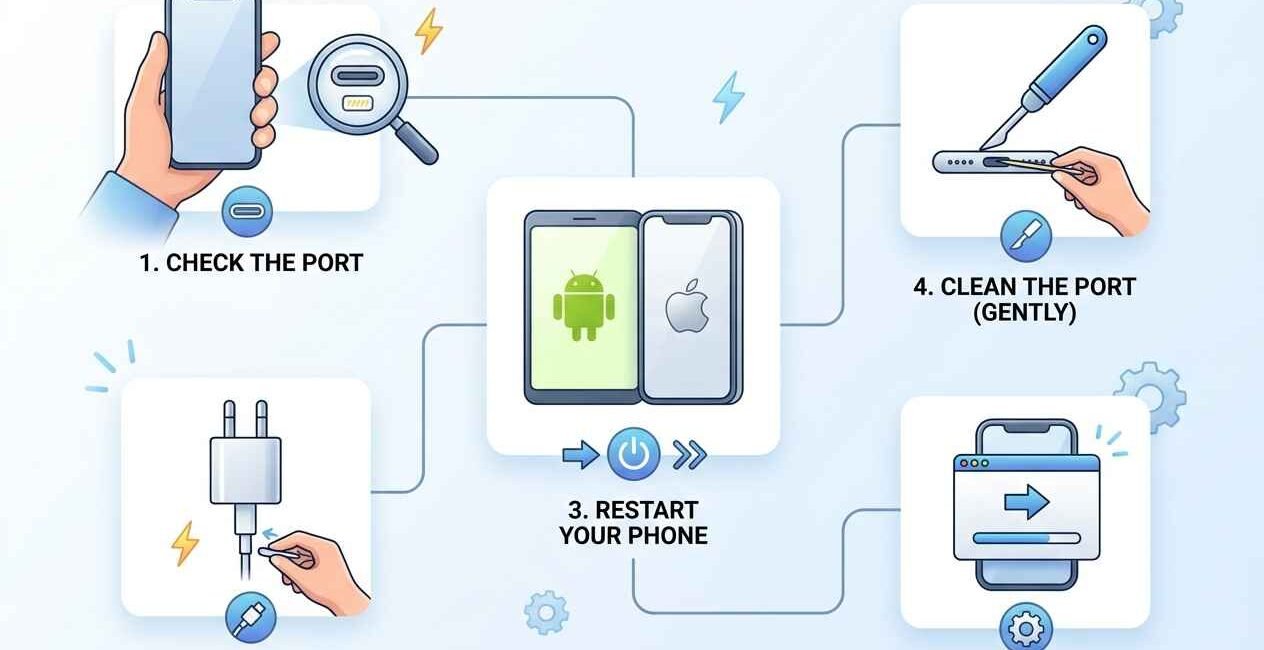
If your phone isn’t charging at all, or is charging painfully slowly, the cause is almost always one of six things: a damaged cable, a dirty charging port, a faulty power source, a software glitch, an aging battery, or in rare cases, a hardware fault. This guide checks each cause in order, cheapest and fastest first, so you don’t assume the worst before ruling out the simple stuff.
Why Won’t Your Phone Charge?
Charging depends on a clean physical connection between your cable, port, and power source, plus software that correctly manages the charging current. A fault at any single point in that chain — even something as small as lint in the port — can stop charging entirely or slow it down dramatically.
Quick Fixes to Try First
- Try a different cable
- Try a different wall adapter or USB port
- Restart your phone
- Check if the charging cable is visibly frayed or bent
- Make sure the outlet or power strip you’re using actually works
If your phone still won’t charge properly after these checks, work through the fixes below.
Fix 1: Check the Charging Cable and Adapter
Cables are the single most common point of failure — the wire inside can fray from bending near the connector long before any visible damage appears.
- Try a completely different, known-working cable
- Try a different wall adapter, ideally one rated for your phone (check your phone brand’s official charging specs)
- Avoid charging through a laptop USB port if possible — these often supply less power
Fix 2: Clean the Charging Port
Lint, dust, and pocket debris build up inside charging ports over time and physically block the connection.
- Power off your phone
- Use a dry, soft-bristled brush, a wooden toothpick, or a can of compressed air — never a metal object
- Gently clear out visible debris without pushing anything deeper into the port
- Turn the phone back on and try charging again
Fix 3: Try a Different Power Source
Outlets, power strips, and USB hubs fail more often than people expect.
- Plug your charger directly into a wall outlet rather than a power strip or extension cord
- Try a different outlet in another room
- If using a car charger or power bank, test with a standard wall charger instead
Fix 4: Restart Your Phone
A frozen background process can occasionally block the charging indicator from updating correctly, even if the phone is technically charging.
- Hold the power button and restart your phone normally
- Plug it in again once it fully restarts
- Watch for the charging icon within the first 60 seconds
Fix 5: Check for a Software Update
Manufacturers occasionally push updates that fix charging-related bugs, particularly around fast-charging compatibility.
On iPhone: Settings > General > Software Update. See Apple’s official charging troubleshooting guide for model-specific advice.
On Android: Settings > System > System Update (menu names vary slightly by brand, e.g. Samsung’s official support site).
Fix 6: Check Battery Health
A degraded battery can cause slow charging, sudden shutoffs, or charging that stalls partway through — this is normal after 2–3 years of daily use.
- iPhone: Settings > Battery > Battery Health & Charging — anything below 80% maximum capacity explains noticeably reduced performance
- Android: Many phones show battery health under Settings > Battery, or via a manufacturer app (Samsung Members, for example)
Fix 7: Rule Out the Charger Entirely
If you have access to a friend’s phone with the same charging port type (USB-C or Lightning), swap chargers to isolate whether the problem is your phone or your accessories. This single test tells you more than repeating the same charger on the same phone ever will.
When It’s a Hardware Problem
If your phone still won’t charge properly after ruling out the cable, adapter, power source, and software, the charging port itself or the battery connector may be physically damaged — especially if the phone has been dropped or exposed to moisture. At that point, a certified repair technician or your manufacturer’s official support channel is the safest next step, rather than continuing to try third-party fixes that risk further damage.

The Seecom is your trusted source for unbiased reviews, expert analysis, and comprehensive comparisons to help you choose with confidence.

Other Articles

How to Recover Deleted Photos on Android and iPhone
How to Turn Off Blue Ticks (Read Receipts) on WhatsApp