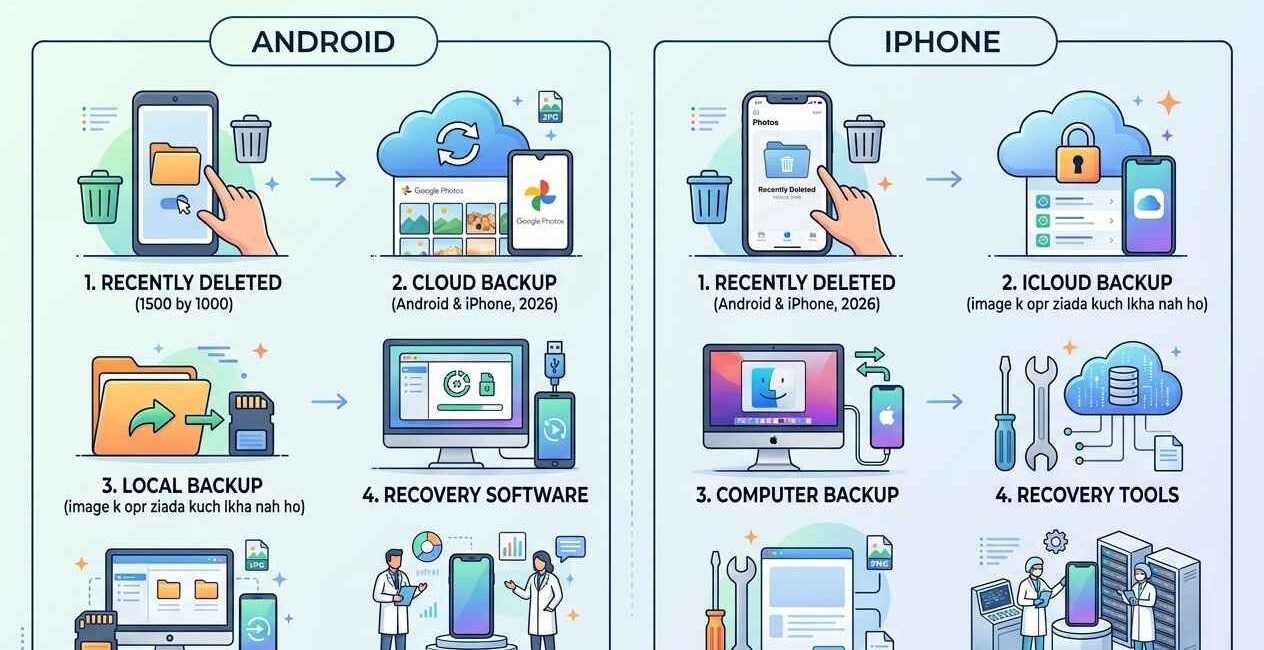
Deleted a photo by mistake, or lost photos after a factory reset? Whether you can recover them depends on how recently they were deleted and whether cloud backup was turned on. This guide covers every recovery method for Android and iPhone, starting with the fastest and most reliable ones.
Check the Recently Deleted Album First
Both Android and iPhone keep deleted photos in a hidden album for 30–60 days before permanently erasing them — this is the first place to check, and it works even without any backup.
On iPhone:
- Open the Photos app
- Tap Albums > Recently Deleted
- Find your photo, tap it, then tap Recover
On Android (Google Photos):
- Open Google Photos
- Tap Library > Trash
- Find your photo, tap and hold it, then tap Restore
See Google Photos’ official trash and recovery documentation for exactly how long deleted items are kept before permanent removal.
Method 2: Restore from Google Photos Backup (Android)
If a photo isn’t in Trash anymore (meaning it was permanently deleted, or the retention window passed), check whether it was ever backed up.
- Open Google Photos on any device and sign in with the same Google account
- Search for the photo by date or location — backed-up photos remain accessible from any signed-in device even if deleted locally
- If found, download it back to your phone
Method 3: Restore from iCloud Photos (iPhone)
- Go to Settings > [your name] > iCloud > Photos, and confirm iCloud Photos is turned on
- Sign in to iCloud.com on a computer or another device
- Check the Recently Deleted folder there as well — it sometimes retains items slightly longer than the on-device version
Method 4: Check Your Computer or External Backup
If you ever connected your phone to a computer and it auto-imported photos (common with both Windows and Mac), the original files may still exist there even if they’re gone from your phone entirely.
- Check your Pictures folder (Windows) or Photos Library (Mac) for a folder matching your phone’s name or the date range
- Search your computer for the approximate filename pattern your phone uses (e.g., IMG_XXXX or PXL_XXXX)
Method 5: Data Recovery Software (Last Resort)
If the photo was permanently deleted and never backed up anywhere, third-party data recovery tools can sometimes recover files from your phone’s storage before they’re overwritten by new data. Success isn’t guaranteed, and results vary significantly by device and how much you’ve used the phone since deletion — the less you use the device before attempting recovery, the higher your chances.
Why Some Photos Can’t Be Recovered
Once a photo is removed from Recently Deleted (either manually or after the retention window expires) and no backup exists, the storage space it occupied can be overwritten by new photos, apps, or files at any time. After that point, recovery becomes unreliable even with specialized software.
How to Avoid Losing Photos in the Future
- Turn on automatic backup in Google Photos or iCloud Photos so every photo is saved the moment it’s taken
- Periodically check that backup is actually running (Settings > [your name] > iCloud on iPhone, or Google Photos > Profile > Photos Settings > Backup on Android)
- Don’t empty the Recently Deleted album manually unless you’re certain you no longer need those photos

The Seecom is your trusted source for unbiased reviews, expert analysis, and comprehensive comparisons to help you choose with confidence.

Other Articles

How to Fix TikTok Video Not Uploading (Stuck at 0%)
How to Free Up Storage on Android and iPhone (Complete Guide)